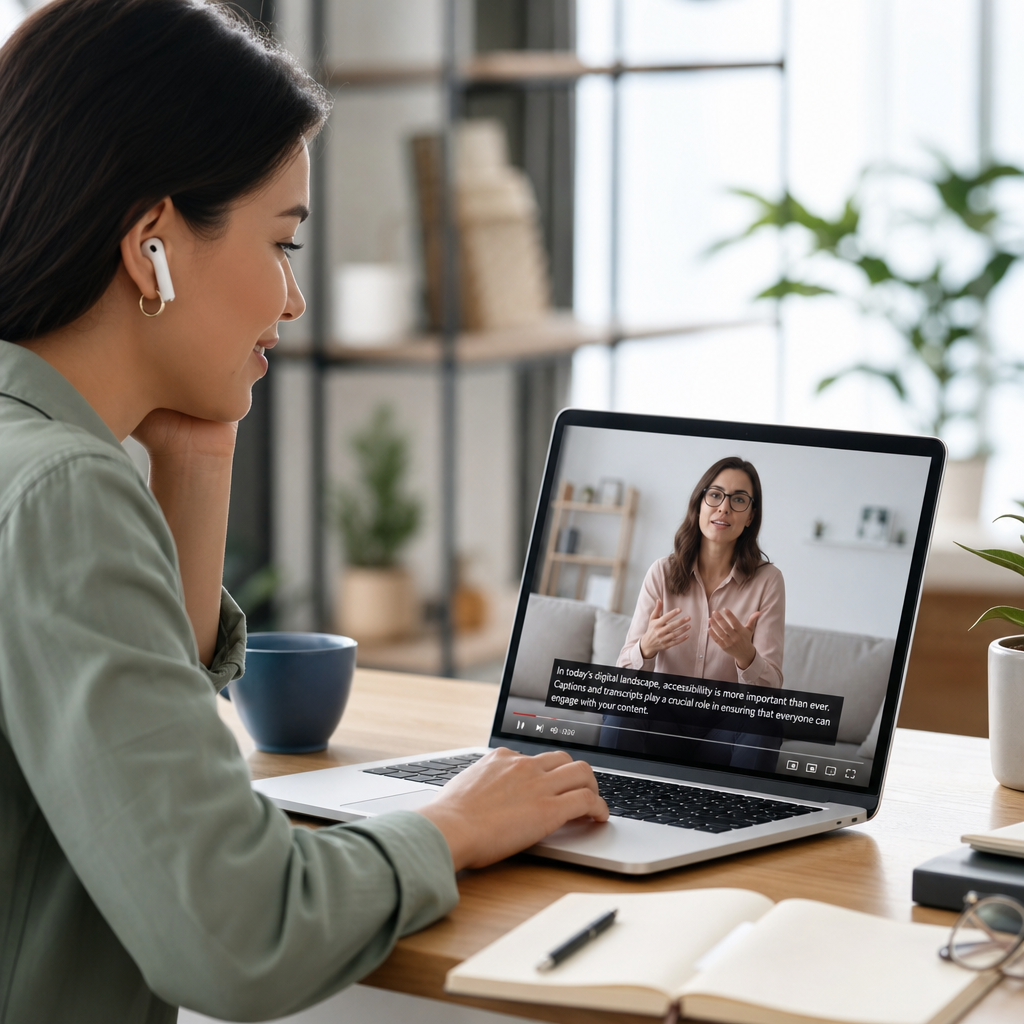

Accessible video content is no longer a niche production concern; it is a core requirement for digital accessibility, audience reach, legal compliance, and usable design across the modern web. In practice, accessible video means media that people can perceive, understand, navigate, and interact with regardless of disability, device, bandwidth, language proficiency, or viewing environment. When I audit video libraries for universities, SaaS companies, and public sector teams, the same pattern appears: brands invest heavily in scripting, filming, and promotion, then lose viewers because captions are inaccurate, controls are keyboard traps, transcripts are missing, and visual information is never spoken aloud. Fixing those issues improves outcomes for everyone, not only disabled users.
Digital accessibility is the discipline of designing websites, apps, documents, and multimedia so they work with assistive technologies and diverse human needs. For video, the key building blocks are captions, transcripts, audio description, accessible players, clear language, sufficient contrast in on-screen text, and predictable interaction. These practices align with the Web Content Accessibility Guidelines, especially principles covering perceivability, operability, understandability, and robustness. They also support legal obligations under frameworks such as the Americans with Disabilities Act, Section 508, the Equality Act in the UK, and the European Accessibility Act, depending on jurisdiction and sector. Even where a regulation does not explicitly mention every video feature, courts and procurement standards increasingly treat inaccessible media as a barrier to equal access.
Why does this matter commercially? Because video is everywhere: onboarding flows, product demos, training libraries, webinars, recruitment pages, social media campaigns, and customer support centers. Captions help viewers in quiet offices and loud transit stations. Transcripts make content searchable and reusable. Audio description assists blind users and anyone multitasking away from the screen. Clean controls help keyboard-only users, screen reader users, power users, and people with temporary injuries. Better accessibility also strengthens retention metrics. In one internal training rollout I supported, completion rates improved after we added corrected captions, downloadable transcripts, and chapter markers, largely because employees could scan content faster and revisit key sections without replaying entire videos. Accessible video works better because it removes friction at every stage of consumption.
What makes video accessible
Accessible video content combines technical compliance with editorial discipline. At a minimum, users need synchronized captions for spoken dialogue and meaningful sounds, transcripts that preserve structure and speaker attribution, and a player that works with keyboard navigation and assistive technology. If critical information appears visually without being spoken, users also need audio description or an equivalent alternative. This includes charts, demonstrations, on-screen prompts, facial reactions that change meaning, and text slides that are not read aloud. Accessibility is not one feature; it is a system in which the file, player, interface, metadata, and surrounding page all support equitable use.
Captions are often misunderstood. Open captions are burned into the image and always visible, while closed captions can be turned on or off in the player. Closed captions are usually better because they preserve user control, language selection, and screen real estate. However, open captions can be useful on social platforms with unreliable player support. Accuracy matters more than format. Auto-generated captions from YouTube, Zoom, Vimeo, Microsoft Stream, or similar tools provide a starting point, not a finished deliverable. In real projects, I expect to correct names, industry terms, punctuation, speaker changes, acronyms, and timing. If captions misidentify a medicine, financial term, or product feature, the result is not simply annoying; it can be misleading.
Transcripts serve a different role. A transcript is a text version of the video or audio content, ideally including speakers, timestamps where useful, and descriptions of meaningful non-speech information. For podcasts and webinars, transcripts increase discoverability because search engines and site search can index the full text. For learning content, transcripts help users quote material, translate it, review it quickly, and study with screen magnifiers or Braille displays. A strong hub for digital accessibility should treat transcripts as part of content strategy, not as an afterthought attached to compliance tickets.
Captions, transcripts, and audio description standards
The most reliable production workflow starts before recording. Script with accessibility in mind by avoiding unexplained references to “this,” “here,” or “as you can see.” If the presenter says, “Click the green button on the left labeled Export,” many users will not need extra description. If they say only, “Click here,” someone listening without the screen loses context. During editing, leave enough pauses for captions to be readable and for audio descriptions to fit naturally. Fast cutting, dense jargon, and wall-to-wall speech create accessibility problems long before the file reaches the publishing platform.
Caption quality should meet clear standards. Speech must be verbatim or equivalent in meaning, punctuation should support comprehension, and non-speech audio should be included when it carries meaning, such as [applause], [door slams], or [music fades]. Timing should match speech closely, and line breaks should respect natural phrases. The FCC captioning quality principles and long-standing broadcast practices are useful benchmarks even for web content. For multilingual audiences, publish translated subtitles separately from same-language captions so users can choose the format that meets their needs. Subtitles translate speech; captions also represent meaningful sounds.
Audio description is essential when visual information is not otherwise available in the soundtrack. In ecommerce, a demo showing color changes, gestures, or step-by-step actions may require concise descriptions. In education, a science video showing a reaction, diagram, or graph often needs more than captions. Description can be integrated into the main narration, added as a separate described version, or delivered through an alternate audio track if the player supports it. The right choice depends on budget, distribution channel, and how visual the content is. The mistake I see most often is assuming captions solve blindness-related access needs. They do not.
| Feature | Purpose | Best use case | Common mistake |
|---|---|---|---|
| Closed captions | Provide synchronized text for dialogue and meaningful sounds | Most website, LMS, and hosted video content | Publishing unedited auto-captions |
| Transcript | Provide full text alternative and searchable record | Webinars, training, podcasts, support libraries | Omitting speakers and sound context |
| Audio description | Explain essential visual information not in dialogue | Demos, tutorials, educational and marketing videos | Assuming narration already covers everything |
| Accessible player | Enable keyboard, screen reader, and focus support | Any embedded video experience | Using custom controls without testing |
Accessible players, controls, and page design
An accessible video can still fail if the player is inaccessible. The player must expose controls properly to assistive technologies, support visible keyboard focus, allow operation without a mouse, and avoid unexpected autoplay. Users should be able to play, pause, adjust volume, enable captions, select full screen, and access transcripts or description without getting trapped in the interface. Native players from major platforms can be workable, but every embedded configuration needs testing. I have seen organizations choose a visually polished player skin that removed focus indicators and broke caption toggles for screen reader users. Appearance cannot come at the expense of operability.
Page design matters just as much as the player. Place the video near a descriptive heading, summarize what users will learn before playback, and link to transcript and download options nearby. If a page contains several videos, use clear titles, durations, and topical grouping so visitors can scan efficiently. Surrounding content should not rely on color alone to signal actions, and any custom chapter navigation should be operable by keyboard. On mobile, ensure controls are large enough and overlays do not obscure captions. For enterprise teams, this often means involving design systems: the same button, modal, accordion, and focus styles used across the site should support the video experience consistently.
Contrast and typography are often overlooked in video itself. Lower-thirds, subtitles burned into social clips, and title cards must meet readable contrast thresholds in practical terms, even if exact measurement on moving backgrounds is imperfect. Use sans-serif fonts, avoid excessively thin weights, keep text on screen long enough to read, and avoid placing text behind faces or busy motion. If you publish square, vertical, and widescreen edits, review each crop separately. I have seen perfectly legible 16:9 captions become unreadable after a vertical export because the safe area changed and brand overlays covered the text.
Production workflow, testing, and governance
The most effective accessible video programs are operational, not heroic. They define requirements at intake, assign ownership, budget for remediation, and test before publication. A simple workflow includes script review, recording guidance, caption generation, human editing, transcript creation, description assessment, player testing, and periodic re-audit. This can be managed in common tools: YouTube Studio for draft captions, Adobe Premiere Pro or Final Cut Pro for timing adjustments, Descript or Otter for transcript starting points, and platform-specific checks in Vimeo, Wistia, Brightcove, Kaltura, or Panopto. The exact stack matters less than having accountable steps and a definition of done.
Testing should include real assistive technology, not only automated checks. Keyboard-only navigation catches focus issues quickly. Screen reader testing with NVDA, JAWS, or VoiceOver reveals whether controls are labeled and state changes are announced. Zooming to 200 percent exposes layout collisions. Reviewing with captions on and sound off shows whether users can follow the story visually. Listening without looking shows whether the audio track carries the necessary information. For training and regulated content, involve disabled testers whenever possible; they identify practical barriers that checklists miss. In one procurement project, a player passed a vendor conformance template but failed basic transcript access in a real LMS workflow.
Governance keeps standards from slipping as libraries grow. Create video accessibility guidelines, editorial templates, and procurement criteria for agencies and vendors. Specify caption accuracy targets, transcript formats, turnaround times, and remediation responsibilities in contracts. Build internal linking paths from your digital accessibility hub to deeper resources on captions, audio description, document accessibility, color contrast, keyboard testing, and accessibility statements. Teams scale faster when video is connected to the broader accessibility program rather than handled as an isolated media issue. That is especially important for a sub-pillar hub under Accessibility and Inclusion, because users rarely experience barriers in only one format. Video, PDFs, forms, webinars, and support articles all intersect.
Common mistakes and how to avoid them
The most common mistake is relying on automation without review. Speech recognition has improved, but names, specialized vocabulary, accents, and overlapping dialogue still create errors. A second mistake is publishing transcripts as inaccessible image PDFs instead of clean HTML or tagged documents. Third, teams ignore live content. Webinars, town halls, and streams need live captioning, post-event corrections, and accessible recordings afterward. Fourth, creators use motion-heavy intros, flashing effects, or tiny on-screen annotations that are hard to perceive. Fifth, organizations forget that accessible video must remain accessible wherever it is embedded, including learning platforms, support portals, mobile apps, and social channels.
Avoiding these issues requires policy and habit. Use plain language in narration, describe actions as they happen, and keep visual instructions explicit. Require manual caption review before publication. Provide transcripts in HTML when possible. Choose players with documented keyboard and screen reader support. Test embeds in the actual user journey, not just on a staging page. For live events, book CART captioning when accuracy matters, and edit the archive promptly. Finally, measure performance: caption usage, drop-off points, search queries landing on transcripts, and support tickets can reveal whether your accessible video strategy is working. If your organization treats video as part of digital accessibility, you create content that is easier to find, easier to use, and more inclusive by design.
Best practices for accessible video content are straightforward in principle: make speech readable, make visuals understandable, make controls operable, and make the surrounding experience clear. When those elements work together, video supports the larger goals of digital accessibility across websites, learning environments, marketing campaigns, and customer support. Captions, transcripts, audio description, accessible players, and tested workflows are not optional extras. They are the foundation of inclusive media.
For teams building an Accessibility and Inclusion content hub, video should be treated as a central part of digital accessibility because it touches education, compliance, search visibility, and user trust at once. Start with your highest-traffic or highest-risk videos, correct captions, add transcripts, evaluate description needs, and test your player with keyboard and screen reader users. Then document the process so every new video ships accessibly from day one. The result is better content for everyone and a stronger accessibility program overall. Audit one video today, fix the barriers you find, and use that workflow to improve the rest of your library.
Frequently Asked Questions
What makes a video truly accessible?
A truly accessible video is designed so people with different disabilities, technology setups, and viewing conditions can perceive, understand, and use it without unnecessary barriers. In practical terms, that usually means the video includes accurate captions for spoken dialogue and meaningful sound cues, a transcript for users who prefer or need text, and audio description when important visual information is not already communicated through narration. It also means the video player itself must be accessible by keyboard, work well with screen readers, provide clearly labeled controls, and avoid confusing or inconsistent interactions.
Accessibility goes beyond compliance checklists. A video may technically include captions but still be difficult to follow if speakers are not identified, jargon is unexplained, or the visuals carry essential meaning that is never spoken aloud. Accessible video also considers users in low-bandwidth situations, people watching on mobile devices, viewers in noisy or quiet environments, and non-native speakers who benefit from clear language and readable captions. The strongest approach is to think of accessibility from the start of scripting, recording, editing, and publishing rather than trying to fix issues after production is complete.
Why are captions, transcripts, and audio descriptions all necessary?
These elements solve different accessibility needs, and one does not replace the others. Captions are time-synced text that help Deaf and hard-of-hearing users follow spoken dialogue and relevant sounds such as laughter, alarms, music cues, or off-screen narration. They also benefit people watching without sound, users in noisy environments, and viewers who process information better when they can both read and hear it. For captions to be effective, they must be accurate, synchronized, complete, and easy to read.
Transcripts serve a different purpose. They provide a text version of the video’s spoken content and, ideally, key visual context. This helps screen reader users, people who want to skim content before watching, users with cognitive disabilities who need more control over pacing, and anyone who may not be able to load or play the video. Transcripts also improve discoverability because search engines can parse text more easily than media alone.
Audio descriptions are essential when meaning depends on visuals that are not otherwise spoken. If a training video shows a user clicking a critical button, a product demo relies on on-screen text, or an educational clip uses diagrams and gestures to explain a concept, blind and low-vision users may miss core information unless it is described. In some cases, strong scripting can reduce the need for separate description by naturally integrating visual details into the narration. The key is making sure no one loses access to the message because the information is only available in one format.
What are the most common accessibility mistakes in video production?
The most common mistake is treating accessibility as an afterthought. Teams often publish a polished video and then add auto-generated captions without reviewing them, assuming the job is done. In reality, unedited captions frequently contain errors in terminology, punctuation, speaker identification, and timing. Those mistakes can make content confusing or misleading, especially in educational, legal, medical, or technical material where precision matters.
Another frequent issue is relying too heavily on visuals without narrating what matters. Slides packed with text, screen recordings with silent cursor movements, charts shown without explanation, and on-screen prompts such as “click here” are all barriers if the visual action is not described. Poor color contrast, tiny text, flashing content, inaccessible embedded players, autoplay, and controls that are difficult to use by keyboard also create avoidable problems. Many organizations also forget that accessibility includes the full publishing experience: titles, descriptions, surrounding page structure, downloadable materials, and playback options all affect whether users can actually access the content.
The best way to avoid these mistakes is to build accessibility into workflow standards. Script with description in mind, record clear audio, review captions manually, provide transcripts as a standard deliverable, choose an accessible player, and test with keyboard navigation and assistive technology before publishing. Consistency matters more than good intentions.
How can teams create accessible videos efficiently at scale?
Efficiency comes from systems, not shortcuts. If an organization manages a large video library, the first step is to create production standards that define what every video must include, such as reviewed captions, a transcript, accessible player support, and visual narration practices. Templates for scripts, caption review, transcript formatting, and publishing checklists save time and reduce inconsistency. It is also helpful to categorize content by risk and priority. For example, public-facing, required, instructional, and legally significant videos should usually be remediated first if resources are limited.
Teams can also improve scale by choosing tools carefully. Automatic speech recognition can speed up caption creation, but it should support a human review process rather than replace it. Centralized media platforms with accessibility features, transcript support, and player customization are usually easier to govern than scattered uploads across multiple services. Training matters too. Editors, marketers, instructors, and content owners should all understand basic video accessibility so responsibility does not fall on one specialist at the end of the process.
Most importantly, create videos in ways that reduce remediation later. Use clear speech, avoid overloading screens with text, narrate visual actions as they happen, and plan for alternative formats from the beginning. When accessibility is built into pre-production and editorial workflows, it becomes faster, cheaper, and more reliable than retrofitting every asset after publication.
How does accessible video support SEO, legal compliance, and user experience?
Accessible video supports all three in very practical ways. From an SEO perspective, transcripts and well-structured text around the video give search engines more content to index, helping pages rank for relevant topics and long-tail queries. Captions and transcripts also increase engagement because users can consume content in different ways, which can improve watch completion, time on page, and content usefulness. Accessible media is often simply easier to understand, and that clarity tends to improve performance across channels.
From a legal and policy standpoint, video accessibility is a significant issue for universities, public sector organizations, employers, and businesses that serve the public. Depending on jurisdiction, requirements may come from disability laws, procurement rules, internal policies, or standards such as WCAG. While exact obligations vary, the direction is clear: inaccessible media creates legal exposure and excludes users from essential information and services. Waiting for a complaint is a costly strategy.
From a user experience perspective, accessible video is just better design. Captions help commuters and office workers. Transcripts help researchers and multilingual audiences. Descriptive narration helps users who cannot see the screen clearly, including people on small devices or in poor lighting. Keyboard-friendly controls help power users as much as assistive technology users. In other words, accessible video does not serve a tiny edge case; it improves reach, usability, and resilience for a broad audience. That is why the most effective teams treat it as a baseline quality standard, not an optional enhancement.