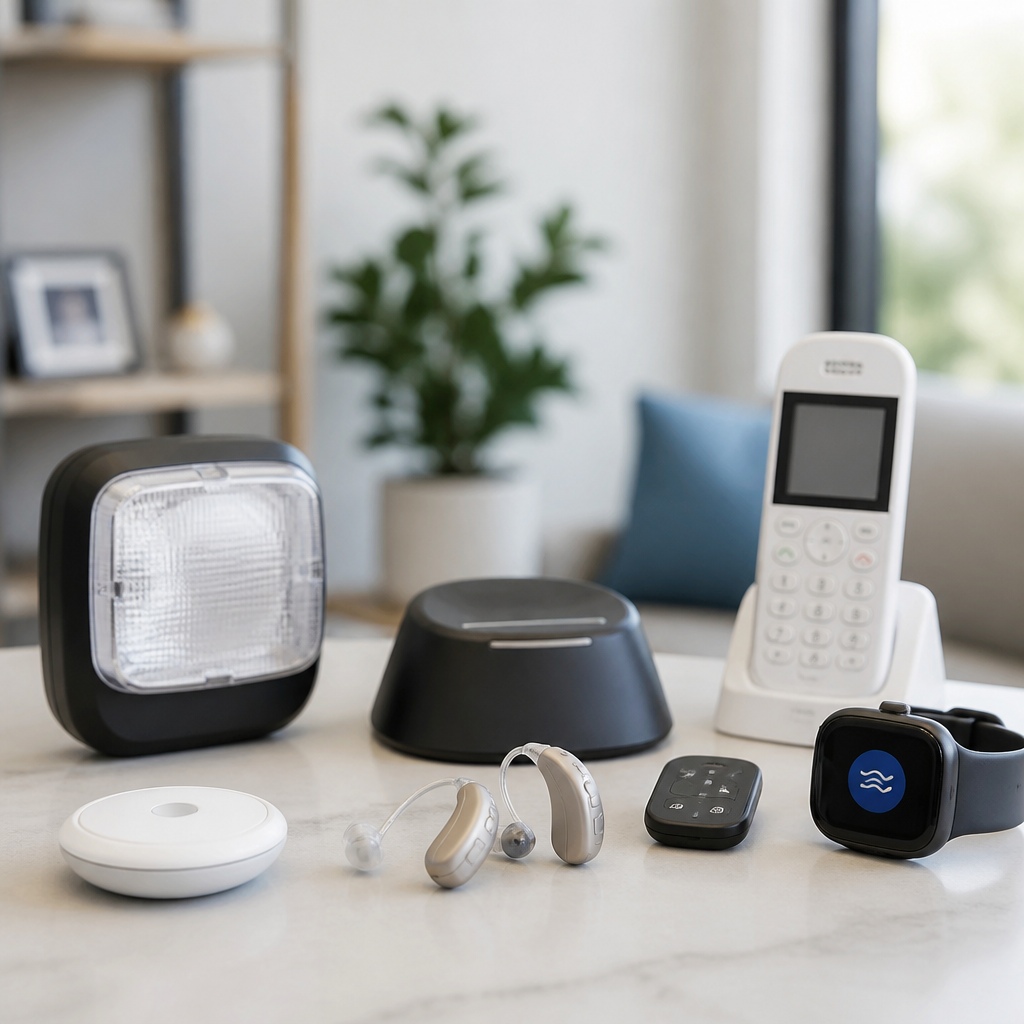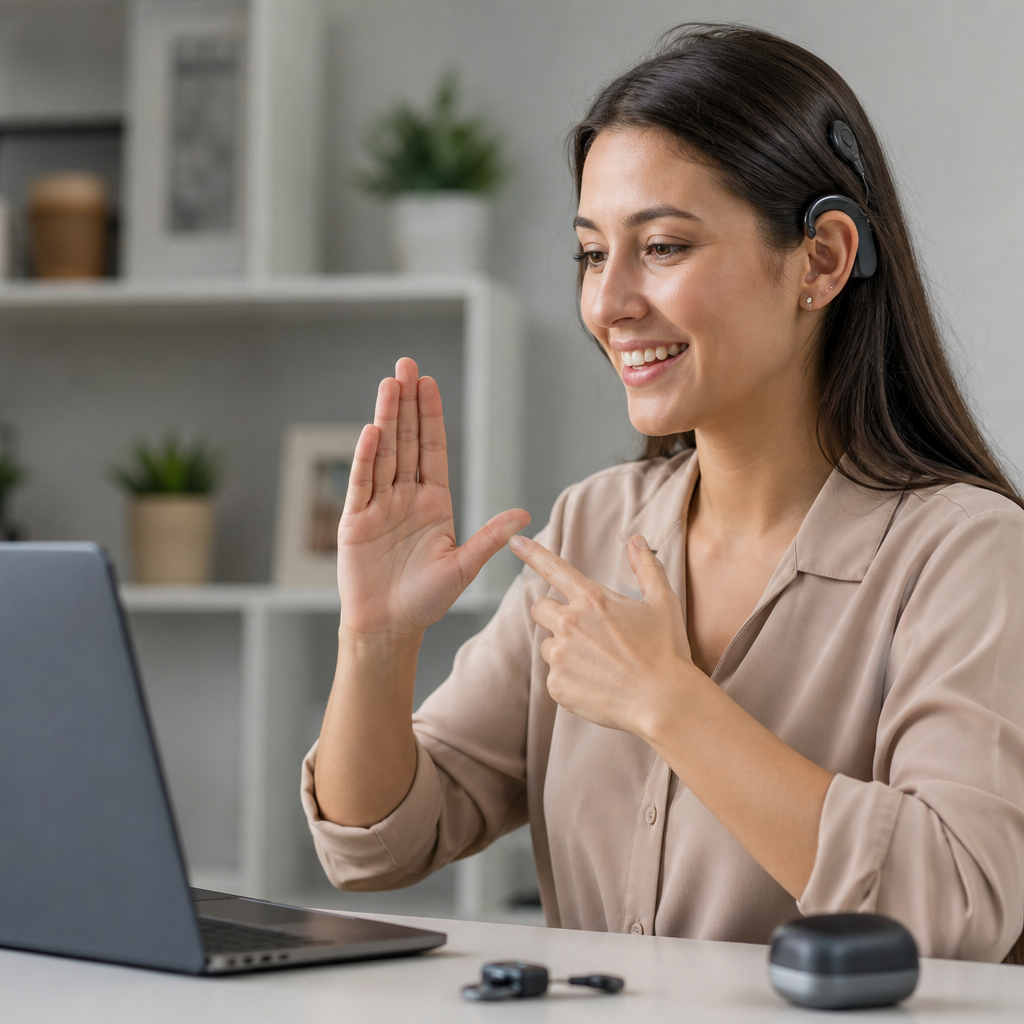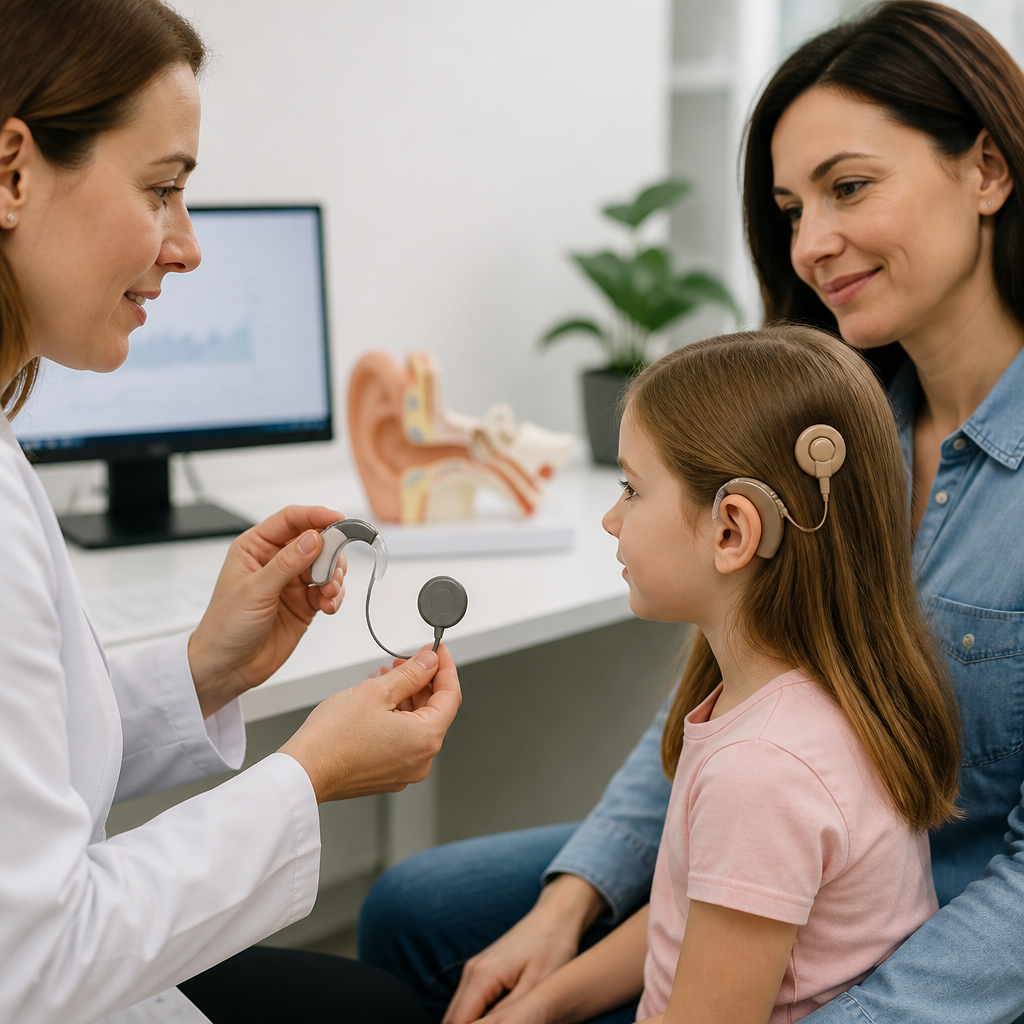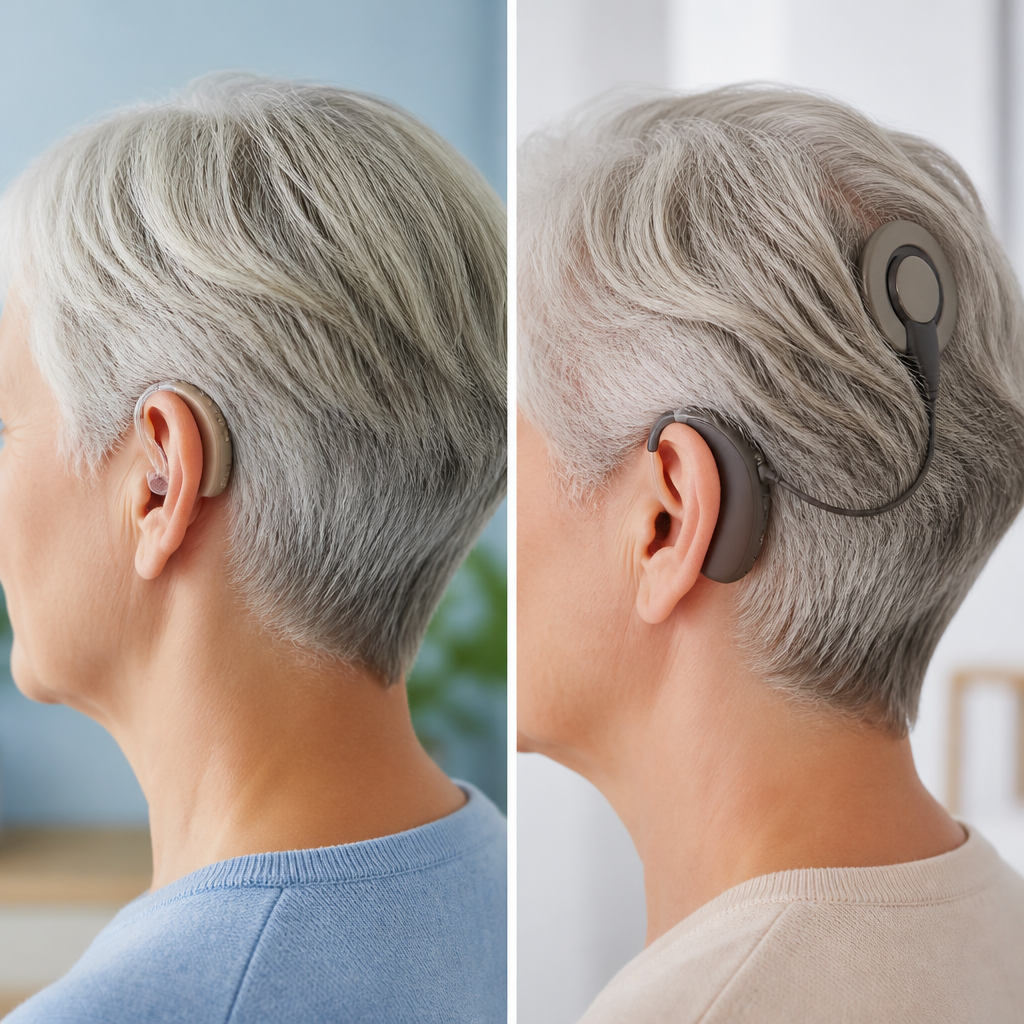
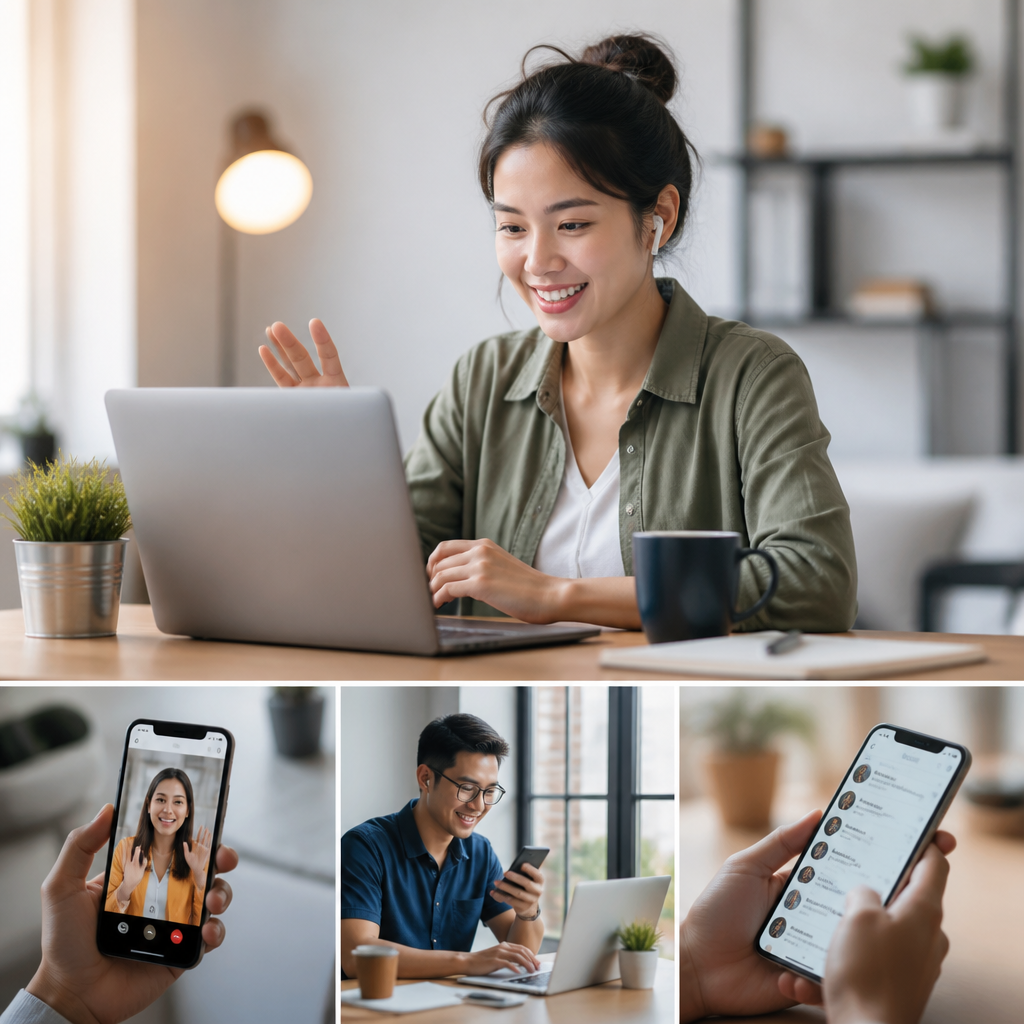
Communication apps have become essential daily tools for many deaf and hard of hearing people, turning phones, tablets, laptops, and smart watches into practical access devices for conversations, alerts, work, school, healthcare, and family life. In this article, communication apps means software that helps people exchange information through text, captions, video, relay services, visual notifications, speech-to-text, text-to-speech, and shared media. Used well, these apps reduce missed information, increase independence, and make interactions faster and less stressful. I have seen this in training sessions, workplace setups, and everyday routines where the difference between a frustrating day and a smooth one often comes down to choosing the right app, configuring it correctly, and knowing when to switch tools. That matters because no single app solves every communication need. A video relay platform may be ideal for a phone call in sign language, while a live captioning app is better for a meeting, and a visual alert app is better for a doorbell or emergency notification. Effective use is not just about downloading popular tools. It requires understanding access features, privacy tradeoffs, device compatibility, battery impact, network reliability, and social expectations in shared spaces. This hub article explains how to use communication apps effectively in daily life, how to match app types to real situations, what settings make the biggest difference, and how to build a personal communication system that works consistently across home, school, work, travel, and public life.
Choose the right communication app for the situation
The most effective communication apps are chosen by task, not by brand popularity. In practice, I recommend grouping communication needs into five categories: direct conversation, phone access, environmental awareness, group collaboration, and emergency support. Direct conversation apps include live transcription and speech-to-text tools such as Google Live Transcribe, Ava, and built-in caption features on Android and iPhone. These work best in face-to-face settings, medical appointments, classrooms, and service counters where fast visual access to spoken information matters. Phone access apps include Video Relay Service platforms, IP Relay, RTT, and captioned telephone apps. These are designed for calls that still depend on the phone network or relay operators. Environmental awareness apps convert sound events into visual or haptic alerts, helping users notice alarms, door knocks, baby cries, or appliance timers. Group collaboration apps such as Zoom, Microsoft Teams, WhatsApp, FaceTime, and Slack matter because daily life increasingly involves mixed communication modes: video, text, file sharing, threaded updates, and recorded messages. Emergency support tools include location sharing, emergency texting, medical ID functions, and public alert integrations.
The key question is simple: what problem must the app solve right now? If the goal is to understand a cashier through a face covering in a noisy store, live captions are more effective than a messaging app. If the goal is to call an insurance provider in sign language, a relay app is the correct tool. If the goal is to keep track of package deliveries, smart doorbell notifications with text previews may matter more than a caption tool. Matching tool to context prevents overload and improves reliability.
Set up accessibility features before you need them
Most communication failures happen because setup was postponed until the moment of need. Effective daily use starts with configuration. Turn on system-level accessibility settings first: live captions, RTT support, hearing device pairing, notification flash, vibration patterns, emergency SOS, and app microphone permissions. On iPhone, Live Captions, Sound Recognition, and Back Tap shortcuts can support fast access. On Android, Live Transcribe, Sound Notifications, and notification channel controls are especially valuable. If you use hearing aids or cochlear implant processors with Bluetooth, test streaming quality, microphone routing, and battery drain before relying on the setup in public.
Within each app, personalize fonts, contrast, alert style, language preferences, contact shortcuts, and saved phrases. For captioning apps, place the device where microphones can pick up the strongest audio, usually near the primary speaker and away from clattering surfaces. For messaging apps, pin priority contacts and turn on previews so important information is visible at a glance. For relay services, verify registration details, callback numbers, and emergency location information. If you use sign language video apps, test camera framing, front lighting, and data performance on both Wi-Fi and mobile networks. These are small steps, but they save time when communication becomes urgent.
Build a daily communication system, not a single-app habit
Relying on one app for everything creates gaps. A stronger approach is to build a layered communication system with backups. In many real-world setups, that means one primary messaging app for close contacts, one live captioning app for in-person conversation, one relay option for phone calls, and one alert app for household awareness. Add cloud notes or a text shortcut system for recurring requests such as “Please face me when speaking” or “I prefer to communicate by text.” This system approach supports consistency across environments.
| Daily situation | Best app type | Why it works |
|---|---|---|
| Doctor appointment | Live captioning app | Provides near real-time visual access to spoken explanations and instructions |
| Calling a bank | Relay or RTT app | Handles phone-based systems and identity verification more reliably than chat |
| Family group updates | Messaging app | Supports asynchronous text, photos, voice notes, and read history |
| Team meeting | Video platform with captions | Combines visual cues, transcripts, and screen sharing in one place |
| Doorbell or alarm | Visual alert app | Converts environmental sound into vibration, flash, or watch notifications |
| Travel disruptions | Airline or transit app with alerts | Delivers text updates faster than overhead announcements |
The benefit of this model is resilience. If captions fail because the room is loud, you can switch to typed notes. If video quality drops, you can continue through text. If a hearing person is impatient on a call, a relay operator or RTT can keep the exchange structured. Daily life is unpredictable, so communication access should have redundancy.
Use messaging apps strategically for personal and public communication
Messaging apps are often the most flexible communication apps because they support both immediate and delayed responses. They work well for family check-ins, school updates, customer service, delivery instructions, appointment changes, and quick clarifications that would otherwise require a voice call. To use them effectively, make your preferences visible. Add a short note in profiles or signatures such as “Text preferred” or “Please send written details.” In work settings, I have found that clear norms reduce friction: use direct messages for urgent items, channels for shared decisions, and summaries after video meetings.
Messaging is also useful in public interactions. Showing a prepared text on your phone can speed up communication with drivers, reception staff, pharmacists, or restaurant workers. Saved templates help with repeated situations, including requesting written instructions, asking someone to type on your device, or confirming an order. The limitation is that messaging can become fragmented across too many apps. To avoid that, keep close contacts on one or two core platforms and turn off nonessential notifications elsewhere. Communication apps should simplify attention, not scatter it.
Make video communication accessible and efficient
Video communication is central for sign language users and increasingly important for remote work, telehealth, and education. Effective use depends on setup quality. Good front lighting improves sign visibility more than expensive cameras. A plain background helps handshape contrast. Camera position should show the upper body clearly, not just the face. In group calls, turn on captions even if you sign, because names, jargon, and side comments are often easier to catch in text. Platforms such as Zoom, Microsoft Teams, and Google Meet now support live captions, pinned interpreters, and transcript functions, but quality varies by language, accent, and audio conditions.
For sign language calls, stable bandwidth matters more than raw speed. Packet loss, motion blur, and lag can damage intelligibility. If home Wi-Fi is inconsistent, sit closer to the router, reduce background streaming, or use a wired connection through an adapter where possible. In telehealth or legal settings, test your platform in advance and confirm whether captioning or interpreter integration is supported. Accessibility should never be assumed. Asking ahead is part of effective app use, not an extra favor.
Improve caption accuracy with practical habits
Speech-to-text tools are powerful, but they are not perfect. Accuracy depends on microphone quality, speaker pace, room acoustics, overlapping speech, and technical vocabulary. In my experience, users get much better results when they actively manage the environment. Place the device close to the main speaker, reduce competing noise, and ask people to speak one at a time. In meetings, request agendas or slides beforehand so unfamiliar terms are easier to predict. Many apps let you save transcripts; review them quickly after important conversations because context fades fast.
It also helps to understand what captions can and cannot do. Automatic captions can handle routine conversation well, but they may miss names, medications, acronyms, or multilingual exchanges. That matters in healthcare, education, legal matters, and financial services. For high-stakes situations, use the app as one support layer alongside written follow-up, human captioning when available, or interpreter services. The most effective users treat caption apps as practical tools with known limitations, not flawless replacements for every access need.
Protect privacy, safety, and control over your information
Communication apps often process sensitive data, including voice, video, contacts, location, medical details, and transcripts. Effective use includes basic privacy review. Check whether transcripts are stored locally or in the cloud, whether data is used for product improvement, and whether conversation history can be deleted. For work and healthcare contexts, understand whether the platform meets your organization’s security rules. Consumer convenience and institutional compliance are not the same thing.
Also think about social privacy. A live transcription screen can expose private comments to anyone nearby. Lock-screen previews may reveal medical reminders or family updates in public. Shared devices can retain chat history. Reduce risk by using screen locks, app-specific passcodes where offered, limited notification previews, and regular transcript cleanup. If you communicate through interpreters or relay operators, know the service’s confidentiality policy and complaint process. Trust comes from control, transparency, and informed consent.
Use communication apps at work, school, and in the community
Daily life extends beyond home use, and communication apps are most effective when integrated into broader routines. At work, combine captioning with written agendas, meeting notes, and accessible chat channels. In school, use apps for lecture support, assignment clarification, and peer coordination, but connect them with formal accommodations rather than treating them as a substitute. In community settings such as gyms, stores, places of worship, and government offices, communication apps can bridge gaps quickly, especially when staff are untrained.
Travel is another major use case. Airline, rail, and rideshare apps often provide clearer real-time updates than loudspeaker announcements. Map apps with text directions reduce reliance on spoken guidance. Hotel chat features can simplify requests without front-desk calls. The pattern is consistent across settings: the most effective users prepare, test, and combine tools. They know which app helps them communicate, which app alerts them, which app documents information, and which app acts as backup when conditions change.
Using communication apps effectively in daily life is less about chasing the newest platform and more about building dependable access around real needs. The best results come from matching each app to a specific task, setting up accessibility features in advance, combining tools into a layered system, and practicing with them before important situations arise. Messaging apps support quick everyday exchanges, video tools enable richer remote communication, captioning apps improve face-to-face access, and alert apps extend awareness beyond speech. Each has strengths, and each has limits. That is why a hub approach to communication apps matters for the deaf community: it creates a clear map of what tool to use, when to use it, and how to make it work reliably at home, at work, in school, during travel, and in public services. If you want better access tomorrow, start today by auditing your devices, choosing one primary app in each category, and testing your setup in a normal daily routine.
Frequently Asked Questions
1. What does it mean to use communication apps effectively in daily life?
Using communication apps effectively means choosing the right tools for the right situations and setting them up so they support everyday communication without creating extra stress. For deaf and hard of hearing users, communication apps can include messaging platforms, captioning tools, relay services, video calling apps, speech-to-text apps, text-to-speech tools, visual alert systems, and shared media platforms. Effective use is not just about downloading an app. It involves customizing notifications, enabling captions, organizing contacts, learning accessibility settings, and making sure the app works smoothly across devices such as phones, tablets, laptops, and smart watches.
In practical terms, effective use means fewer missed messages, clearer conversations, and faster access to important information at home, at work, at school, during travel, and in healthcare settings. For example, someone may use a messaging app for quick updates with family, a live captioning app during appointments, a video relay service for phone calls, and a visual notification app for alerts like doorbells or alarms. The most effective setup is usually a combination of apps rather than one single tool.
It also helps to build habits around communication. That may include checking app permissions, testing features before an important meeting, saving frequently used phrases, and making sure people in your daily life know which app works best to reach you. When communication apps are used intentionally, they become more than convenience tools. They become reliable access supports that help reduce misunderstandings, improve independence, and make day-to-day interactions more manageable.
2. Which types of communication apps are most useful for deaf and hard of hearing people?
The most useful communication apps usually fall into a few key categories, and the best combination depends on an individual’s communication preferences, hearing level, environment, and daily routine. Text-based messaging apps are often the foundation because they offer direct, flexible communication for quick questions, group planning, work coordination, and staying in touch with friends and family. These apps are especially useful when voice calls are inconvenient or unclear.
Captioning and speech-to-text apps are another essential category. They can convert spoken language into readable text during meetings, classroom discussions, appointments, and casual conversations. Some apps provide live captions for in-person communication, while others work well with video calls or recorded media. For users who rely on visual access to spoken information, these apps can dramatically improve comprehension and reduce fatigue from trying to fill in missing words.
Video communication apps are also highly valuable, especially for users who prefer sign language or visual communication. Video calls can support direct conversations with family, coworkers, teachers, interpreters, or service providers. Video relay service apps are particularly important when a user needs to place or receive phone calls through an interpreter. In addition, text-to-speech and speech-assist apps can help when a user wants to type a message that the app speaks aloud to another person.
Visual alert and notification apps round out a strong communication system by making everyday signals easier to notice. These may include alerts for calls, messages, alarms, calendar reminders, doorbells, or environmental sounds. In many cases, the most useful apps are the ones that work together well across multiple devices. A phone may handle messaging and captions, a smart watch may deliver vibration alerts, and a laptop may support longer written conversations or video meetings. The goal is to create a practical toolkit that supports communication in a wide range of real-life situations.
3. How can I set up communication apps so they are easier and more reliable to use every day?
A good setup starts with accessibility and notification settings. Many people install communication apps but never fully customize them, which can limit how useful they are. Start by enabling features such as live captions, vibration patterns, flash alerts, banner notifications, speech-to-text access, larger text, high contrast display options, and device-level accessibility settings. If you use more than one device, make sure your apps are synced so messages, calls, and alerts appear consistently on your phone, tablet, laptop, and watch.
It is also smart to organize apps by purpose. Keep your primary communication tools easy to reach on the home screen, and separate personal, work, school, and emergency communication if needed. Save important contacts as favorites, pin essential conversations, and create shortcuts for people you communicate with often. If an app supports saved replies, templates, or custom phrases, use them for common situations such as confirming appointments, asking for repetition, or explaining communication preferences. These small adjustments can make daily interactions much faster and less tiring.
Reliability also depends on testing. Before relying on an app in an important moment, try it in real-world conditions. Test captions in a noisy room, check whether video quality is stable on mobile data, verify whether notifications break through silent mode, and confirm that relay or emergency-related features work as expected in your area. Keep apps updated, review permissions regularly, and have a backup option in case one service fails. For example, if a captioning app does not perform well in a specific setting, a messaging app or note-sharing method may work better as an alternative.
Finally, communication works best when the people around you know your preferred tools. Let family, coworkers, teachers, healthcare staff, and close contacts know whether you prefer text, captioned calls, video, or another format. Effective setup is not only technical. It is also social. When others understand how to reach you clearly, communication becomes smoother, faster, and more respectful.
4. How can communication apps help in work, school, healthcare, and family life?
Communication apps can improve access in nearly every part of daily life by making information more visible, repeatable, and easier to manage. In work settings, messaging apps help with quick updates, scheduling, project coordination, and reducing the pressure of phone-based communication. Captioning apps can support meetings, training sessions, and one-on-one conversations, while video platforms with caption support can make remote collaboration more inclusive. Some users also rely on shared documents, team chat tools, and visual task platforms to keep communication clear and documented.
In school, communication apps can support both learning and participation. Speech-to-text tools can help students follow lectures and discussions, while messaging and classroom apps make it easier to ask questions, confirm assignments, and stay connected with teachers and classmates. Recorded lessons with captions, shared notes, and real-time text options can all reduce information gaps. When students have reliable access to what is being said and assigned, they are better positioned to participate fully and manage their workload with confidence.
Healthcare is another area where communication apps can be especially valuable. Appointments often involve fast-paced spoken information, unfamiliar terms, and important follow-up instructions. Live captioning, typed communication, secure messaging portals, and video relay options can help patients understand medical advice more accurately and ask better questions. Some people also use note-sharing apps to record instructions, medication details, or appointment summaries. Better access in healthcare is not just about convenience. It supports safety, informed decision-making, and more independent care management.
In family life, communication apps help keep routines organized and relationships connected. Group chats can handle schedules, pickups, meals, reminders, and check-ins. Video calls support visual conversations with relatives who live far away. Shared photo and media apps can make communication richer and more personal. Visual notifications and smart-device integrations can also help users notice important alerts in the home. Across all of these areas, the biggest benefit is consistency. When communication is clearer and easier to access, daily life becomes more coordinated, less frustrating, and more inclusive.
5. What are the best habits for avoiding missed information and communication breakdowns?
The best habits start with consistency and redundancy. Relying on only one app or one type of alert can lead to missed information, especially in busy, noisy, or unpredictable environments. A stronger approach is to combine methods. For example, use text messages for direct communication, visual or vibration alerts for urgent notifications, captions for spoken conversations, and calendar reminders for time-sensitive tasks. Layering tools like this makes communication more dependable because if one method fails, another can still get your attention.
Another important habit is checking settings regularly. Operating system updates, app changes, battery saver modes, and permission resets can affect how well communication apps perform. Review your notification settings, microphone access, caption preferences, contact permissions, and connected device syncing from time to time. If you use smart watches or tablets as secondary alert devices, make sure they are charged, paired, and receiving notifications correctly. It is also useful to revisit app choices occasionally, since features improve and your daily needs may change over time.
Clear communication expectations can prevent many common breakdowns. Let the people in your life know how you prefer to communicate and what helps conversations go more smoothly. That might mean asking someone to message instead of call, use a platform with better captions, pause while speech-to-text catches up, or switch to video for visual communication. In professional and educational settings, being proactive about communication preferences can save time and reduce repeated misunderstandings.
Finally, build simple backup plans for important situations. Keep an alternative app available, carry a portable charger, save emergency contacts in easy-to-reach locations, and know which tools work best in low-connectivity situations. For appointments, meetings, or travel, test key apps in advance rather than assuming they will work perfectly. Effective