Best captioning software for accessibility is no longer a niche topic for broadcasters or compliance teams. It is a daily operational decision for schools, employers, media publishers, healthcare providers, courts, event organizers, and creators who need spoken information to be accessible in text form. Captioning software converts speech into synchronized on-screen text, while transcription tools produce text records of audio or video that may or may not include timing. In practice, the two overlap, but they solve slightly different problems: captions support real-time comprehension during playback or live events, and transcripts support review, search, documentation, and repurposing.
Accessibility is the reason this software matters most. For deaf and hard of hearing users, captions can be the primary path to information, participation, and safety. For many hearing users, captions also improve comprehension in noisy spaces, support second-language learning, and make content searchable. In my work evaluating accessibility tools for webinars, training libraries, and customer support archives, I have seen one consistent pattern: teams often choose software based on convenience first and quality second, then discover that poor speaker identification, inaccurate punctuation, and weak timing make content harder, not easier, to use. The best captioning software balances accuracy, editability, live support, file compatibility, collaboration, and compliance.
This hub article covers the full captioning and transcription tools landscape. It explains how captioning software works, what features matter most, which platforms fit different use cases, and how to evaluate tradeoffs between automatic speech recognition and human review. It also highlights standards and formats that buyers should understand before committing to a workflow. If you are building an accessible content stack for meetings, online courses, social media, podcasts, live events, or video libraries, this guide gives you the practical foundation to choose well and create reliable captions at scale.
What captioning software does and which features matter most
Captioning software falls into three broad categories: live captioning tools, prerecorded captioning editors, and transcription platforms with caption export. Live tools generate text during meetings, lectures, webinars, and broadcasts. Prerecorded editors let teams upload media, generate draft captions, correct them, and export timed files. Transcription platforms focus on text output but often support subtitle formats such as SRT, VTT, and SCC. The strongest accessibility workflows combine these categories rather than relying on one product to do everything.
The most important feature is accuracy, but accuracy has layers. Word recognition is only the starting point. Good captions also require punctuation, sensible line breaks, proper synchronization, low latency for live events, non-speech sound cues when relevant, and speaker labels when multiple voices are present. If software produces 95 percent word accuracy but consistently drops names, medical terms, legal terminology, or product vocabulary, users still lose meaning. That is why custom dictionaries, glossary support, and the ability to train vocabulary matter so much in specialized environments.
Editability is the second nonnegotiable feature. Automatic captions are almost never publish-ready for high-stakes uses such as compliance training, graded course content, healthcare education, or public-facing marketing videos. Editors should support waveform views, keyboard shortcuts, speaker assignment, timing adjustments, search and replace, and version control. Teams also need flexible export options, because accessibility workflows rarely stop at one destination. Common file formats include SRT for general subtitles, WebVTT for web video, TTML for certain enterprise and broadcast workflows, and SCC for line 21 and legacy broadcast requirements.
Integration matters because captioning usually sits inside a larger content process. Meeting platforms like Zoom, Microsoft Teams, and Google Meet can provide live captions, but organizations often need those captions saved, edited, and republished in a learning management system, video hosting platform, or knowledge base. The software that wins in practice is often the software that reduces handoffs.
Best captioning software by use case
No single platform is best for every accessibility scenario. The right choice depends on whether you need live captions, recorded video subtitles, collaborative editing, broadcast compliance, or high-volume transcription. The tools below are consistently useful because they solve specific problems clearly and at scale.
| Tool | Best for | Key strengths | Main limitation |
|---|---|---|---|
| 3Play Media | Enterprise accessibility workflows | Human review options, integrations, audio description support | Higher cost than self-serve tools |
| Rev | Fast turnaround captions and transcripts | Human and automatic services, broad format support | Quality varies by audio complexity |
| Otter | Meetings and collaborative notes | Live transcription, speaker separation, summaries | Caption styling and media finishing are limited |
| Descript | Creators and podcast-video teams | Text-based editing, overdub tools, simple subtitle workflow | Not built for strict broadcast compliance |
| Trint | Newsrooms and research teams | Strong transcript collaboration, multilingual support | Less specialized for accessibility publishing |
| YouTube Studio | Public video libraries on a budget | Free auto captions, subtitle editor, broad reach | Auto captions need careful review |
| Zoom | Live meetings and webinars | Built-in live captions, third-party CART support | Post-event editing workflow is basic |
| Verbit | Education, legal, and enterprise live captioning | Real-time services, domain vocabulary, human oversight | Procurement and pricing are enterprise-oriented |
For enterprise accessibility programs, 3Play Media is one of the most dependable choices because it is designed around compliance and workflow control. It supports captions, transcripts, audio description, translation, and integrations with major video platforms. In higher education and public-sector environments, that breadth matters because one procurement decision often has to serve many departments.
Rev remains popular because it offers both automatic and human-generated captions with relatively simple ordering. It is useful for teams that need quick turnaround without building a full internal captioning department. Otter is strongest in meetings, where searchable transcripts, action items, and speaker tracking add value beyond captions alone. Descript is excellent for creators because editing video through text shortens production time dramatically. Trint works well in editorial settings where teams need to interrogate interviews, tag quotes, and collaborate across long transcripts.
Automatic versus human captioning: where each works best
Automatic speech recognition has improved quickly, especially with cleaner audio and modern large-vocabulary language models, but it still fails in predictable ways. Accents, crosstalk, poor microphones, domain-specific terminology, background noise, and rapid speaker changes all reduce quality. In accessibility practice, that means automatic captions are best treated as a draft or a live-support layer, not an unquestioned final product.
Human captioning is slower and more expensive, but it remains the standard for precision. It is especially important for legal proceedings, medical education, government communication, financial disclosures, formal training, and any content where a wrong word changes meaning. CART providers and professional captioners also outperform automated systems in live high-stakes settings because they can interpret context, clarify names, and handle overlapping speech more intelligently.
The best operational model is usually hybrid. Use automation to create a first pass, then apply human editing according to content risk and audience need. I have implemented this model for webinar archives and training catalogs with strong results. Routine internal updates received machine captions plus quick cleanup, while evergreen courses and public videos went through full editorial review. That approach preserved budget without sacrificing accessibility quality where it mattered most.
A simple rule helps teams decide. If the content informs rights, safety, grades, money, or public reputation, use human review. If the content is ephemeral, internal, and low risk, well-monitored automatic captions may be acceptable, especially when users can request corrections. The software should make that escalation path easy rather than forcing separate systems.
Live captioning for meetings, classes, events, and broadcasts
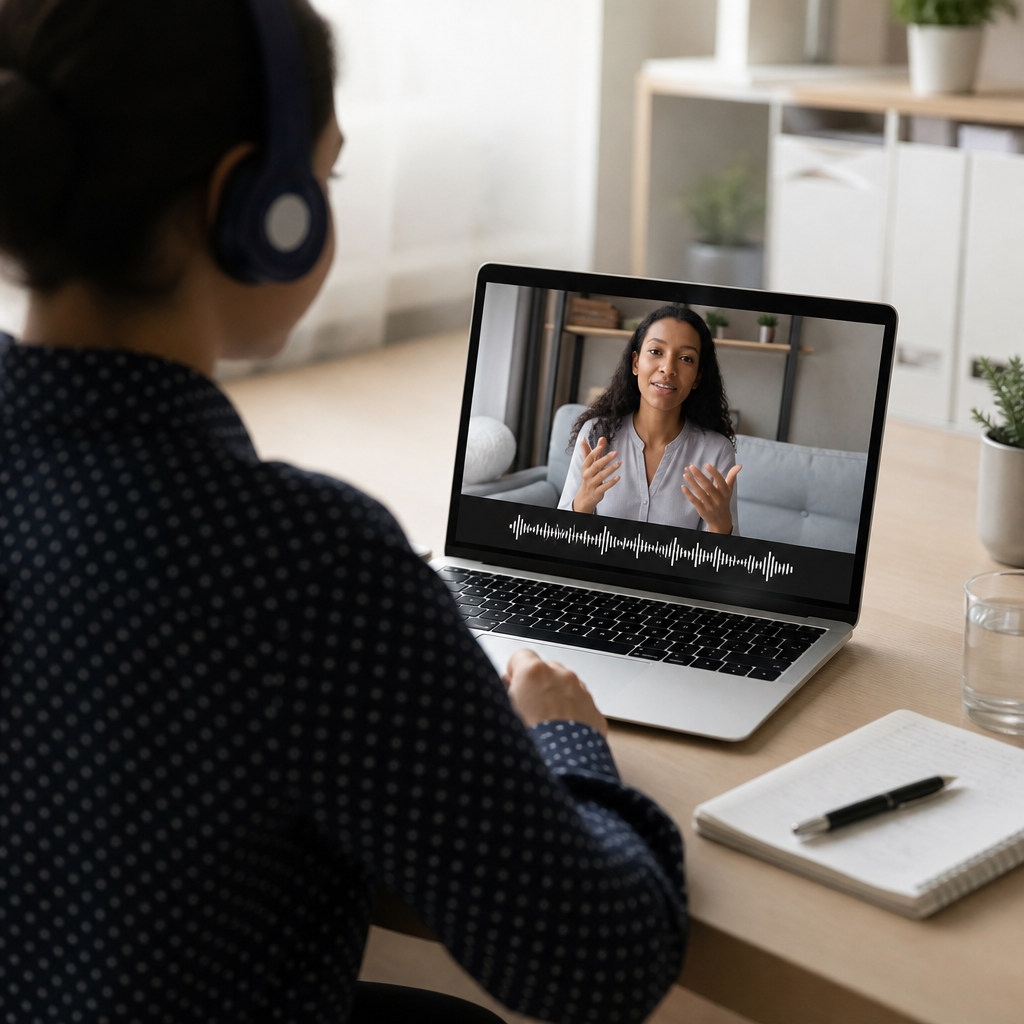
Live captioning has distinct technical demands. Accuracy still matters, but latency becomes equally important because delayed captions can make conversation impossible to follow. In meetings and classrooms, users need captions close enough to real time to participate, not just review later. That is why platform-native live captions in Zoom, Microsoft Teams, Google Meet, and Webex are useful: they reduce setup friction and are available instantly.
Still, built-in live captions are not always enough. For large webinars, public events, commencement ceremonies, legal hearings, and televised programming, organizations often use professional real-time captioning through CART or remote stenography. Services from providers such as Verbit and other accessibility vendors can integrate with event platforms while delivering higher consistency than fully automated tools. Broadcasters may also require encoder support, specific delivery standards, and monitoring workflows that general meeting apps do not provide.
When evaluating live captioning software, ask practical questions. Can attendees turn captions on and off easily? Are speaker names shown? Is there multilingual support? Are transcripts saved automatically? Can a human captioner be brought in when needed? Does the system perform well with panel discussions and audience questions? These are not edge cases; they are normal event conditions. A platform that looks impressive in a solo demo can break down quickly in a real conference session with hybrid audiences and uneven audio sources.
Captioning for recorded video, online courses, podcasts, and social media
Recorded media gives teams more control, so expectations should be higher. For course videos and training libraries, captions should be edited for accuracy, synchronized carefully, and checked for readability. Educational content often contains technical terms, acronyms, equations, and proper names that automatic systems mishandle. Podcasts need punctuation and speaker identification to remain understandable in transcript form. Social media clips need short, well-timed captions because viewers often watch without sound.
Descript, Rev, 3Play Media, and YouTube Studio are common tools in this part of the workflow. Descript accelerates editing because producers can correct transcript text and media changes together. YouTube Studio is surprisingly useful as a no-cost starting point for public video channels, but creators should not rely on default auto captions alone. The platform itself notes that automatic captions may misrepresent content, especially with unclear audio. For institutions subject to accessibility obligations, review is essential before publication.
For online learning, caption files should align with the video player and learning management system in use. Canvas, Blackboard, Moodle, Panopto, Kaltura, and Vimeo each introduce practical workflow differences. I have seen teams lose hours because they created valid captions in the wrong format or without preserving speaker labels needed for comprehension. Selecting software that exports multiple formats and integrates directly with hosting tools can prevent those avoidable errors.
Standards, compliance, and quality control
Accessibility software decisions should be grounded in standards, not assumptions. In the United States, the ADA and Section 508 shape accessibility expectations across many organizations, while the WCAG framework provides practical guidance used globally. Captions for prerecorded video should be accurate, synchronized, complete, and properly equivalent to spoken content. Depending on context, important non-speech information such as laughter, alarms, or music cues may also need to be included.
Quality control should be documented, especially in regulated sectors. A useful internal checklist includes spelling of names, terminology verification, punctuation review, timing alignment, reading speed, speaker labels, sound effect inclusion where relevant, and final playback testing on desktop and mobile. If content is multilingual, translation review becomes a separate quality layer. Machine translation can assist, but it often misses idioms and technical nuance.
Teams should also remember that transcripts are not captions. A transcript alone does not satisfy the need for synchronized text during playback. Likewise, subtitles translated into another language serve a different audience need than same-language captions for accessibility. Good software supports both while making the distinction clear in the workflow.
How to choose the right captioning and transcription tool stack
The best captioning software for accessibility is rarely one product. It is usually a stack: a live caption layer for meetings, a production tool for recorded content, a human-review option for critical media, and storage or integrations that keep assets searchable. Start with your content inventory. Count how many live events, training videos, social clips, podcasts, and archived recordings you handle each month. Then map your risk levels, audience needs, and required turnaround times.
Next, test audio from your real environment, not vendor sample files. Use a noisy classroom lecture, a remote team meeting, a webinar with multiple speakers, and a video with specialized vocabulary. Measure not only raw accuracy but also editing time. Some systems produce similar error rates, yet one is much faster to fix because the editor is better designed. That difference has major budget implications over a year.
Finally, look for durability. Favor vendors that support open export formats, strong integrations, responsive support, and clear accessibility commitments in their own products. The goal is not just to caption one video. The goal is to build a repeatable, trustworthy process that makes information accessible across your organization.
Captioning and transcription tools are foundational technology for the deaf community and for any organization serious about accessibility. The right software improves participation in live conversations, makes recorded content usable, supports compliance, and creates searchable knowledge that benefits everyone. The strongest options today include enterprise platforms like 3Play Media and Verbit, flexible services like Rev, meeting-focused tools like Otter and Zoom, creator-friendly editors like Descript, and public-channel basics like YouTube Studio. Each has a place when matched to the right job.
The key takeaway is straightforward: choose tools based on accessibility outcomes, not just automation promises. Prioritize accuracy, editability, live performance, file compatibility, and human review paths. Build a workflow that fits your real content types and quality requirements, then document standards so results stay consistent as volume grows.
If you are expanding your Technology & Tools for the Deaf Community resources, use this page as the hub for deeper comparisons, platform-specific reviews, live captioning guides, and transcription workflow articles. Audit your current captions, test two or three tools with real content, and put an accessibility-first captioning process in place now.
Frequently Asked Questions
What is the difference between captioning software and transcription software?
Captioning software and transcription software are closely related, but they serve different accessibility purposes. Captioning software converts spoken audio into text that is synchronized with video or live speech, so viewers can read what is being said at the exact moment it is spoken. This timing element is what makes captions especially useful for video content, webinars, classrooms, meetings, live streams, and recorded presentations. Good captioning platforms also let users edit speaker labels, punctuation, line breaks, timing, sound cues, and on-screen placement to improve readability and accessibility.
Transcription software, by contrast, creates a written record of spoken content without necessarily matching text to specific timecodes on screen. A transcript is often used for documentation, searchability, meeting notes, legal review, training materials, archived records, and content repurposing. Many tools now offer both functions in one workflow, which is why the categories often overlap in practice. For example, a team may first generate a transcript from a recorded meeting, then turn that transcript into closed captions for publication. When evaluating tools, it helps to ask whether you need synchronized captions, downloadable transcripts, or both. For accessibility-focused organizations, the strongest platforms usually support both because different audiences and use cases require different outputs.
What features should I look for in the best captioning software for accessibility?
The best captioning software for accessibility should do much more than automatically turn speech into text. Accuracy is the first priority, because poorly generated captions can confuse viewers, distort meaning, and reduce trust in the content. Look for strong speech recognition, support for multiple accents and audio conditions, and easy editing tools so teams can quickly correct errors. Timing controls are equally important, since captions need to appear in sync with speech and remain on screen long enough to be read comfortably. A platform should also allow users to manage punctuation, speaker identification, sound effects, and non-speech information such as laughter, applause, music cues, or alarms when that context matters.
Beyond core caption quality, accessibility-minded buyers should evaluate workflow and compliance features. Useful capabilities include support for common caption file formats like SRT, VTT, SCC, and TTML, integrations with video platforms and conferencing tools, live captioning options, multilingual caption support, collaborative editing, and version control. If your organization serves regulated environments such as education, healthcare, government, or legal services, reporting, audit trails, and security controls may be essential as well. It is also worth reviewing the usability of the interface itself. A captioning platform should be accessible to the people creating captions, not just the people consuming them. In short, the best software combines high accuracy, flexible editing, broad compatibility, efficient workflows, and practical accessibility features that work at scale.
How accurate is automatic captioning software, and when is human review necessary?
Automatic captioning software has improved significantly, and in many cases it can produce a strong first draft in seconds. However, accuracy still depends heavily on audio quality, speaker clarity, vocabulary, accents, background noise, overlapping speech, and subject matter complexity. A simple one-speaker recording made with a good microphone may caption very well, while a panel discussion with technical jargon and multiple speakers can produce far more errors. Even when the general wording is correct, automated systems may still miss punctuation, capitalization, speaker changes, proper names, product terms, and sound cues that help make captions truly accessible.
Human review is necessary whenever accuracy, clarity, and reliability matter. That includes public-facing media, educational content, legal proceedings, healthcare communication, compliance-sensitive environments, executive presentations, and any content where a small mistake could change meaning. Human editors can correct specialized terminology, improve segmentation for readability, identify speakers, and ensure captions meet internal or industry standards. In many organizations, the most effective approach is a hybrid workflow: use AI to generate a draft quickly, then have a trained reviewer edit it before publishing. This balances speed and cost while protecting accessibility quality. If a vendor claims fully automatic captions are always sufficient, that is usually a sign to look more carefully at the real-world editing demands your content will require.
Why are captions important for accessibility and not just for convenience?
Captions are a core accessibility feature because they make spoken information available in text form for people who are deaf or hard of hearing. Without captions, video and live spoken content may exclude part of the audience entirely. But their value extends well beyond a single user group. Captions also help people with auditory processing differences, neurodivergent users, people learning a new language, viewers in noisy environments, and anyone who cannot use audio at a given moment. In workplaces, classrooms, hospitals, courts, and public events, captions support comprehension, retention, and equal access to information.
From an organizational perspective, captions are also part of a broader accessibility and inclusion strategy. They can improve content usability, support compliance obligations, and make digital communication more effective overall. Search engines cannot watch videos the way humans do, but caption text and transcripts can help make content more discoverable and indexable. Training videos become easier to reference, recorded meetings become easier to review, and public communications become easier to understand. Most importantly, captions reduce barriers. Accessibility is not about adding extras for a small audience; it is about designing communication so more people can participate fully. That is why choosing the right captioning software is an operational decision with direct impact on inclusion, usability, and reach.
How do I choose the right captioning software for my organization or content type?
The right captioning software depends on who you serve, how much content you produce, and how your team works day to day. Start by identifying your primary use cases. A school may need lecture captioning, LMS integration, and student accommodations. A media publisher may prioritize file format support, editing speed, and multilingual workflows. An employer may need live captions for meetings and webinars. A healthcare provider may focus on privacy, secure handling of sensitive recordings, and clear patient communication. Courts, legal teams, and public agencies may need higher documentation standards, detailed transcripts, and stronger auditability. Clarifying these needs early makes it much easier to compare platforms realistically.
From there, evaluate software across five practical areas: accuracy, accessibility features, workflow efficiency, integrations, and security. Request demos using your actual content rather than relying only on marketing samples. Test difficult audio, multiple speakers, technical terms, and real publishing workflows. Review editing tools, turnaround times, export options, collaboration features, and how easily the software fits into your existing systems. If accessibility is the priority, look beyond headline AI claims and confirm whether the tool supports high-quality review and final delivery. Pricing should also be examined carefully, especially if fees vary by minute, user, language, or live event usage. The best choice is usually not the platform with the most features on paper, but the one that consistently produces reliable, accessible captions in the environments where your organization actually operates.