
Communication apps have become essential tools for deaf and hard of hearing users because they reduce everyday barriers across text, video, calls, alerts, and live conversations. In this context, communication apps include messaging platforms, captioning tools, relay services, speech-to-text software, video calling apps, and accessibility utilities that help people exchange information clearly. The best communication apps for deaf and hard of hearing users do more than send messages; they support visual communication, accurate transcription, hearing aid compatibility, emergency access, and flexible language preferences such as sign language, typed chat, or captioned speech. I have tested many of these tools in workplaces, medical appointments, classrooms, and family settings, and the difference between a merely popular app and a genuinely accessible one is significant. Choosing the right app matters because communication affects employment, education, healthcare, safety, and independence. A weak app creates friction at exactly the moments when clarity is most important. A strong app can make a doctor’s visit understandable, a meeting productive, and a call with relatives less stressful. This guide explains the best communication apps for deaf and hard of hearing users, what each type does well, where limitations remain, and how to select a practical combination that fits real life rather than marketing claims alone.
What makes a communication app genuinely useful
The best communication apps for deaf and hard of hearing users solve a specific communication problem with reliability, speed, and accessibility built in from the start. In practice, that means clear visual design, support for live captions or transcripts, stable video quality for signing, adjustable notifications, and compatibility with hearing devices or accessibility features on iPhone and Android. Accuracy matters, but so does context. An app with excellent transcription may still fail if speaker labels are missing, if the text lags too far behind, or if it cannot save conversations for later review.
Useful apps also account for the diversity within the deaf and hard of hearing community. Some users communicate primarily through American Sign Language or another signed language. Others rely on spoken language with captions, hearing aids, cochlear implants, or amplified audio. Some need fast text-first communication in customer service settings, while others need high-quality video for interpreters or family conversations. There is no single best app for everyone. The practical goal is a stack of tools that covers one-to-one chat, group meetings, spontaneous conversation, and emergency communication.
Privacy and cost should be part of any evaluation. Health discussions, school meetings, and workplace calls often involve sensitive information, so encryption, transcript storage settings, and account controls matter. Free tools can be excellent, but premium plans may unlock better caption quality, longer meeting times, or business features. For many users, the strongest setup combines one mainstream messaging app, one live captioning app, one video platform that works well for signing, and a relay or emergency-ready option.
Best messaging and everyday text communication apps
For daily communication, messaging apps remain the most reliable starting point because text is often faster and less error-prone than voice. WhatsApp is a strong option due to broad adoption, end-to-end encryption, image and video sharing, and dependable group messaging. It works well for family coordination, service businesses, and international contacts. Apple Messages is similarly strong for iPhone users because it integrates tightly with notifications, Live Captions features on supported devices, and high-quality media sharing. Google Messages performs well on Android, especially when RCS chat is enabled for read receipts, typing indicators, and improved group messaging.
Signal deserves attention for users who prioritize privacy. In my experience, it is one of the clearest examples of an app that does the basics extremely well without clutter. Text, images, voice notes, and video calls are straightforward, and the app has a reputation for strong security. Telegram offers large groups and cloud sync, but accessibility consistency can vary by device and update. Microsoft Teams and Slack are common in workplaces. Both can support deaf and hard of hearing professionals through persistent chat, file sharing, threaded discussions, and meeting integrations, though they are more useful in organizational environments than for personal communication.
The key advantage of messaging apps is control. Users can read at their own pace, scroll back for missed details, and reduce the cognitive load that often comes with fast spoken conversation. They also create a written record, which is especially helpful for appointments, delivery instructions, school updates, and remote work coordination.
Top live captioning and speech-to-text apps
Live captioning apps are often the most transformative communication apps for deaf and hard of hearing users because they turn in-person speech, meetings, videos, and phone audio into readable text. Google Live Transcribe is one of the best-known options on Android. It offers real-time speech-to-text, supports many languages, and can identify environmental sounds such as alarms, knocking, or running water. For quick everyday conversations, it is often the first app people try because setup is simple and the interface is readable.
Otter is widely used in business and education. It provides live transcription, speaker identification, searchable notes, and summaries, making it useful not only during a conversation but afterward. In meetings, that searchable transcript can prevent follow-up errors and reduce note-taking fatigue. Ava is another leading option, particularly in group settings. It supports live captions for multiple participants and has been used in classrooms, workplaces, and public events. Microsoft Teams and Zoom also include live caption features, which can be effective when everyone is already using those platforms.
No captioning app is perfect. Accuracy drops with overlapping speakers, strong accents, industry jargon, background noise, or weak microphones. Medical terminology, legal language, and names often need correction. The best results come from good microphone placement, one speaker at a time, and a quiet room. These tools are highly useful, but they should be treated as communication support, not flawless transcription.
Video calling apps that support sign language and visual communication
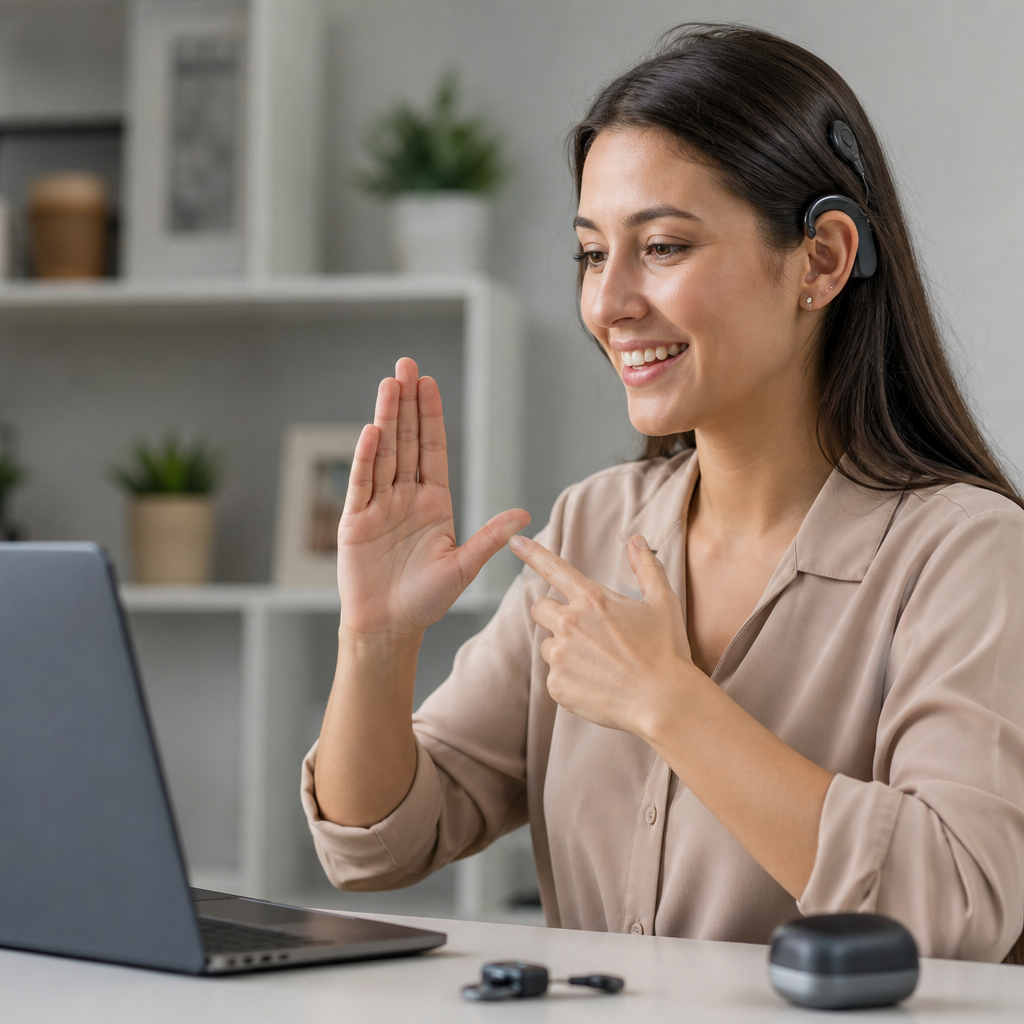
For users who sign, video quality is not a luxury feature; it is the communication channel itself. Zoom, FaceTime, and Google Meet are among the best communication apps for deaf and hard of hearing users because they provide stable video, gallery views, and enough visual clarity to support sign language when bandwidth is decent. FaceTime is especially effective within Apple ecosystems because video quality is consistently strong and setup friction is low for families. Zoom remains a standard for schools, remote work, and telehealth because it supports pinning interpreters, spotlighting speakers, and enabling live captions.
Google Meet performs well in browser-based environments and works smoothly in many school and business accounts. Microsoft Teams is often unavoidable in corporate settings and has improved captions and meeting accessibility, though the interface can feel dense for first-time users. Marco Polo and Glide can also help families who prefer asynchronous video messages rather than live calls. For some deaf users, short signed video messages are more natural than typing long explanations.
Lighting, camera angle, and screen size affect usability as much as software choice. A phone held too close can cut off hand shapes and facial expressions. Poor backlighting makes signing harder to read. In practical use, a tablet or laptop often works better than a small phone screen for long signed conversations, especially in groups.
Relay services and phone call solutions
Standard voice calls remain a common barrier, which is why relay and captioned call tools are still essential communication apps for deaf and hard of hearing users. In the United States, Telecommunications Relay Services and Video Relay Service providers enable calls between deaf users and hearing callers through text or sign language interpreters. Sorenson, ZP Better Together, and Convo are recognized providers in the video relay space. For users who sign fluently, VRS can be the fastest and most natural way to handle customer service, appointments, and official calls.
Captioned telephone solutions serve a different need. Apps such as InnoCaption provide real-time captions during phone conversations and are especially useful for hard of hearing users who still use their own voice. The app can combine automated captions with communications assistants depending on the scenario and jurisdiction. ClearCaptions offers another established captioned calling pathway. These services can make routine calls dramatically more manageable, particularly when dealing with healthcare offices, schools, employers, banks, or government agencies that still default to phone communication.
Availability depends on country, regulation, and eligibility requirements. Users should confirm service coverage, device compatibility, and whether emergency calling is supported in the way they expect. Relay tools are powerful, but understanding setup rules in advance prevents confusion when an urgent call is needed.
How leading apps compare in real-world use
Different communication apps excel in different scenarios. The most effective choice depends on whether the goal is casual messaging, a signed family call, a business meeting transcript, or a captioned phone conversation. The comparison below highlights where major apps tend to fit best.
| App | Best for | Key strength | Main limitation |
|---|---|---|---|
| Everyday personal messaging | Widely used, simple text and media sharing | Captioning features are limited inside chats | |
| Signal | Private text and calls | Strong security and clean design | Smaller user base than mainstream apps |
| Google Live Transcribe | In-person conversations | Fast real-time speech-to-text | Accuracy drops in noisy rooms |
| Otter | Meetings and notes | Searchable transcripts and summaries | Best features require a paid plan |
| Ava | Group captions | Designed for multi-speaker access | Performance depends on microphone quality |
| Zoom | Signed video meetings | Stable video, pinning, captions | Free plan time limits can interrupt calls |
| FaceTime | Apple-to-Apple video calls | High-quality video with low friction | Limited for mixed-device households |
| InnoCaption | Captioned phone calls | Accessible phone communication | Service availability varies by region |
Accessibility features that matter before you choose
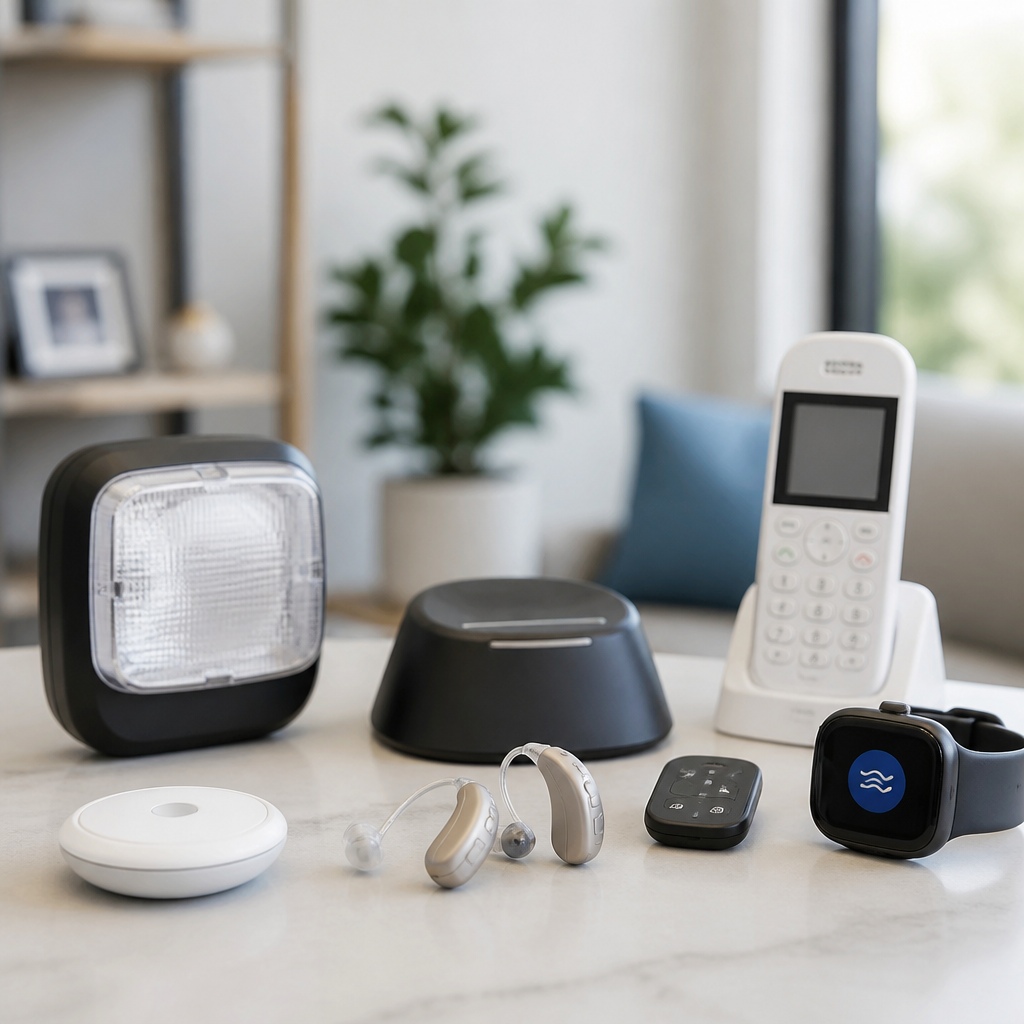
When evaluating communication apps, start with practical accessibility criteria rather than app store ratings alone. First, check visual readability. Large text support, contrast, dark mode, and uncluttered layouts reduce strain during long conversations. Second, test notification flexibility. Deaf and hard of hearing users often depend on vibration patterns, flash alerts, wearable notifications, and lock-screen previews to avoid missed messages or calls.
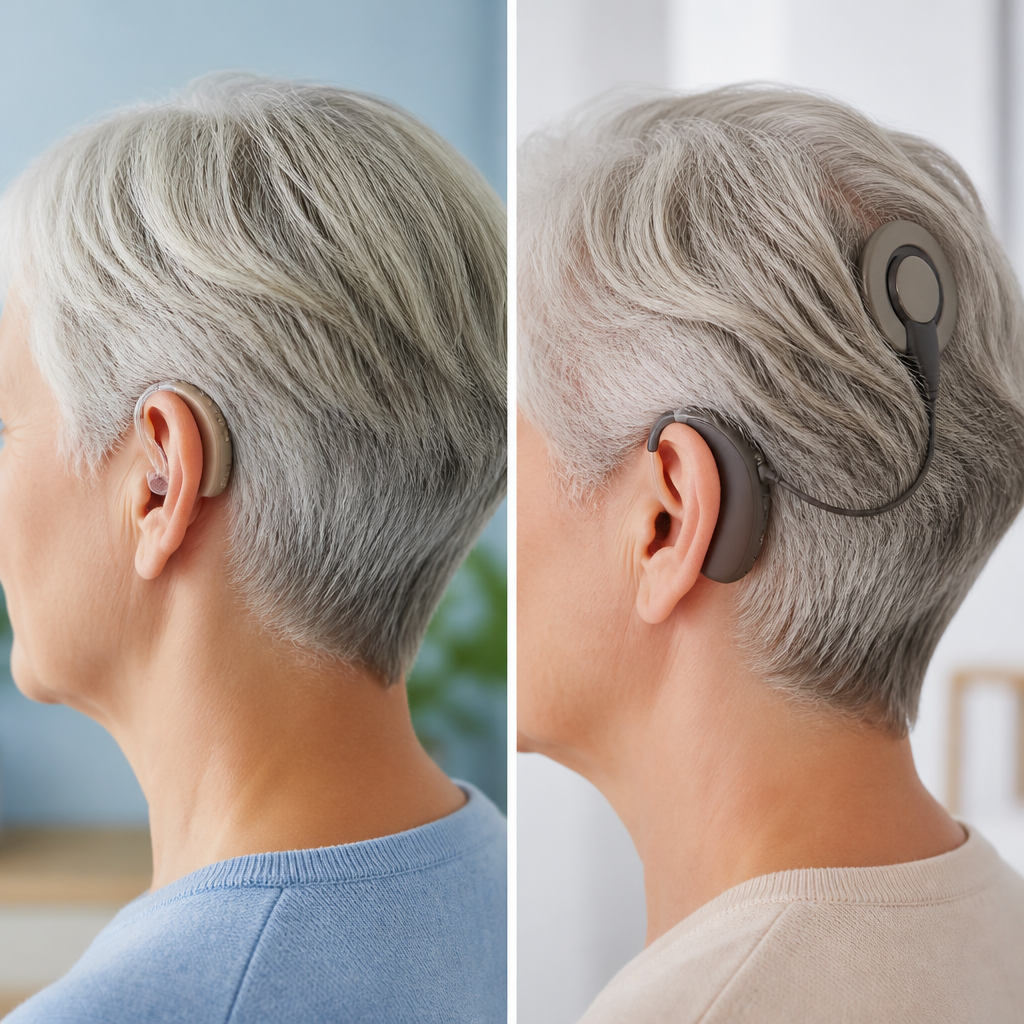
Third, examine transcript handling. Can captions be saved, searched, exported, or corrected? In work and education settings, transcript storage can be as valuable as the live conversation itself. Fourth, test device compatibility. Some apps work better with Bluetooth microphones, hearing aids, cochlear implant audio streaming, or external keyboards than others. Fifth, look at battery use and bandwidth demands. High-definition video and constant captioning can drain older phones quickly.
It is also worth checking whether the app supports multilingual communication. Many deaf and hard of hearing users move between signed language, written English, and another spoken or written language at home or work. Translation support, while imperfect, can add meaningful flexibility.
How to build the best app setup for daily life
Most people do not need one perfect app; they need a toolkit. A practical setup often looks like this: a mainstream messaging app for daily text communication, a live captioning app for in-person conversations, a strong video calling platform for signing or meetings, and a relay or captioned call app for phone access. That combination covers nearly every routine scenario without forcing one tool to do everything badly.
For example, a college student might use Apple Messages or WhatsApp for classmates, Otter or Ava for lectures and study groups, Zoom for office hours with interpreters, and InnoCaption for calls with administrative offices. A working professional might rely on Slack or Teams chat, built-in meeting captions, Google Live Transcribe for spontaneous desk-side discussions, and a VRS provider for external phone calls. A parent may prefer FaceTime for signed family calls, WhatsApp for school messages, and Live Transcribe for pediatric appointments.
The best communication apps for deaf and hard of hearing users are the ones that fit actual habits, not idealized workflows. Test them in real environments: a noisy café, a moving car, a doctor’s reception desk, a group meeting, and a low-light evening call. Real performance under stress matters more than feature lists.
Choosing the best communication apps for deaf and hard of hearing users comes down to matching tools to situations. Messaging apps such as WhatsApp, Signal, Apple Messages, and Google Messages handle daily coordination well. Live captioning tools like Google Live Transcribe, Otter, and Ava improve access to in-person speech and meetings. Zoom, FaceTime, Google Meet, and Teams support signed or captioned video communication, while relay and captioned calling services bridge the persistent gap created by voice-first phone systems. No single app solves every problem, and that is normal. Strong communication access usually comes from combining two or three well-chosen tools and setting them up carefully. Focus on caption quality, video clarity, transcript handling, privacy, and device compatibility before committing. If you are building out your technology stack under the broader Technology and Tools for the Deaf Community topic, use this hub as your starting point, then test a small set of apps against your real daily routines and keep the ones that consistently make communication easier.
Frequently Asked Questions
What features should deaf and hard of hearing users look for in a communication app?
The most useful communication apps for deaf and hard of hearing users usually go far beyond basic messaging. Strong accessibility features often include real-time captioning, accurate speech-to-text conversion, visual notifications, customizable alerts, video calling support, and easy text-based communication. For many users, app quality depends on how well it handles live conversations, background noise, and different speaking styles. Caption accuracy is especially important because even a small delay or repeated transcription errors can make conversations frustrating in work, school, healthcare, or social settings.
It is also worth looking at how well an app supports different communication preferences. Some people primarily use text chat, while others rely on sign language through video calls, relay services, or a mix of methods depending on the situation. Apps that allow large text, vibration alerts, device pairing, transcript saving, and cross-platform syncing can make everyday communication much smoother. The best choice is usually the one that fits the user’s routine, communication style, and accessibility needs rather than the one with the longest feature list.
Are live captioning and speech-to-text apps accurate enough for everyday use?
Many live captioning and speech-to-text apps are now good enough to be genuinely helpful in daily life, especially for one-on-one conversations, meetings, classes, and casual interactions. Accuracy has improved significantly thanks to better voice recognition and AI-powered transcription. In quiet environments with clear speakers, these apps can perform very well and make spoken communication more accessible in real time. They are especially useful when a user needs quick understanding without waiting for a manual transcript or interpreter.
That said, no app is perfect in every setting. Accuracy can drop when multiple people talk at once, when accents are unfamiliar to the software, when internet connections are weak, or when there is heavy background noise. For that reason, many users treat speech-to-text apps as highly valuable tools, but not always complete replacements for other accommodations. In important situations such as medical appointments, legal discussions, or complex workplace meetings, it may still help to combine captioning apps with relay services, note-taking support, or human interpreters. The best approach is to test apps in real-world situations and see how consistently they perform in the environments that matter most.
How do video calling apps help deaf and hard of hearing users communicate more effectively?
Video calling apps are essential for many deaf and hard of hearing users because they support visual communication in ways that standard voice calls cannot. For people who use sign language, video calls allow direct face-to-face conversation with the visibility needed for hand movements, facial expressions, and body language. Even for users who do not sign, video can improve communication by making lip-reading, facial cues, and turn-taking easier to follow. This added visual context often reduces misunderstandings and helps conversations feel more natural and complete.
The most effective video communication apps typically include stable video quality, low lag, screen sharing, chat support, and built-in captions or compatibility with captioning tools. Good lighting and camera framing matter too, because visual clarity is critical for accessible conversation. In professional or educational settings, the ability to pin speakers, enlarge video windows, or review meeting transcripts can make a big difference. Overall, video calling apps are not just alternatives to voice calls; they are often the preferred communication method because they better support the visual and text-based ways many deaf and hard of hearing users connect with others.
What is the difference between messaging apps, relay services, and captioning tools?
These tools all support communication, but they solve different problems. Messaging apps are designed for direct text-based communication between users. They are often the simplest and most flexible option for everyday conversations, group chats, customer support, and quick updates. Because they do not depend on hearing spoken audio, messaging platforms are often a natural fit for deaf and hard of hearing users, especially when they also offer media sharing, desktop access, and reliable notifications.
Relay services, on the other hand, are built to bridge communication between deaf or hard of hearing users and people using standard phone systems. Depending on the service, this may involve text relay, video relay, or captioned telephone support. These services are especially valuable when contacting businesses, public services, or individuals who expect a traditional phone call. Captioning tools are different again: they convert spoken language into readable text during live conversations, meetings, videos, or calls. In practice, many users benefit from combining all three. Messaging apps handle everyday text communication, relay services make phone-based interactions possible, and captioning tools improve access during spoken conversations in person or online.
How can users choose the best communication app for work, school, and everyday life?
The best way to choose a communication app is to start with the situations where communication barriers happen most often. For work, users may need accurate live captions, meeting transcripts, team chat integration, and support across phones and computers. For school, features like lecture captioning, note export, video conferencing, and group messaging can be especially useful. For personal life, priorities often shift toward ease of use, fast messaging, visual alerts, video calling quality, and compatibility with family members’ devices. A strong app should fit naturally into daily routines instead of creating extra effort.
It is also important to compare privacy, reliability, cost, and accessibility settings. Some apps are free but limited, while others offer premium captioning or relay features that may be worth the upgrade. Users should test interface readability, notification strength, battery impact, and how well the app performs in noisy or fast-paced settings. If possible, trying more than one app is a smart strategy because different tools may serve different purposes. In many cases, the best setup is not a single app but a combination of messaging, captioning, and video communication tools that work together to support clear, confident communication throughout the day.