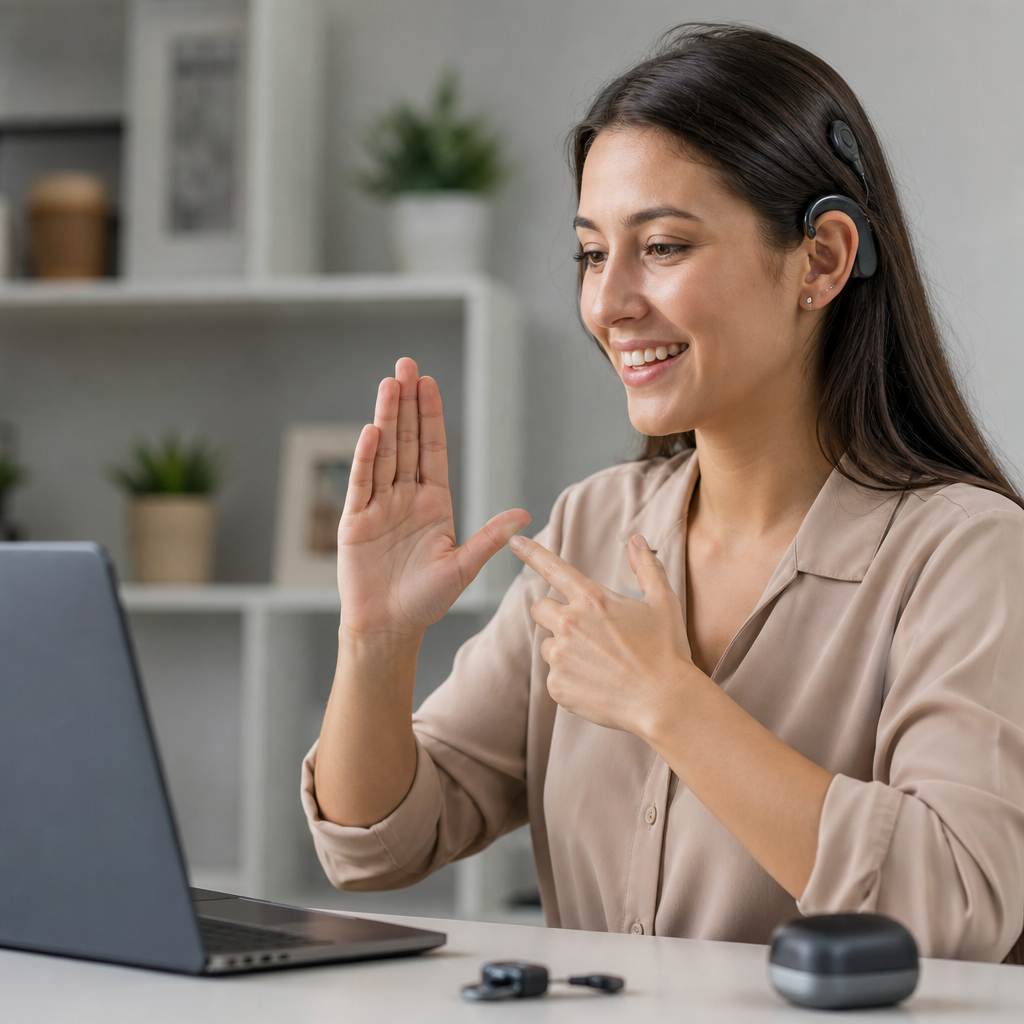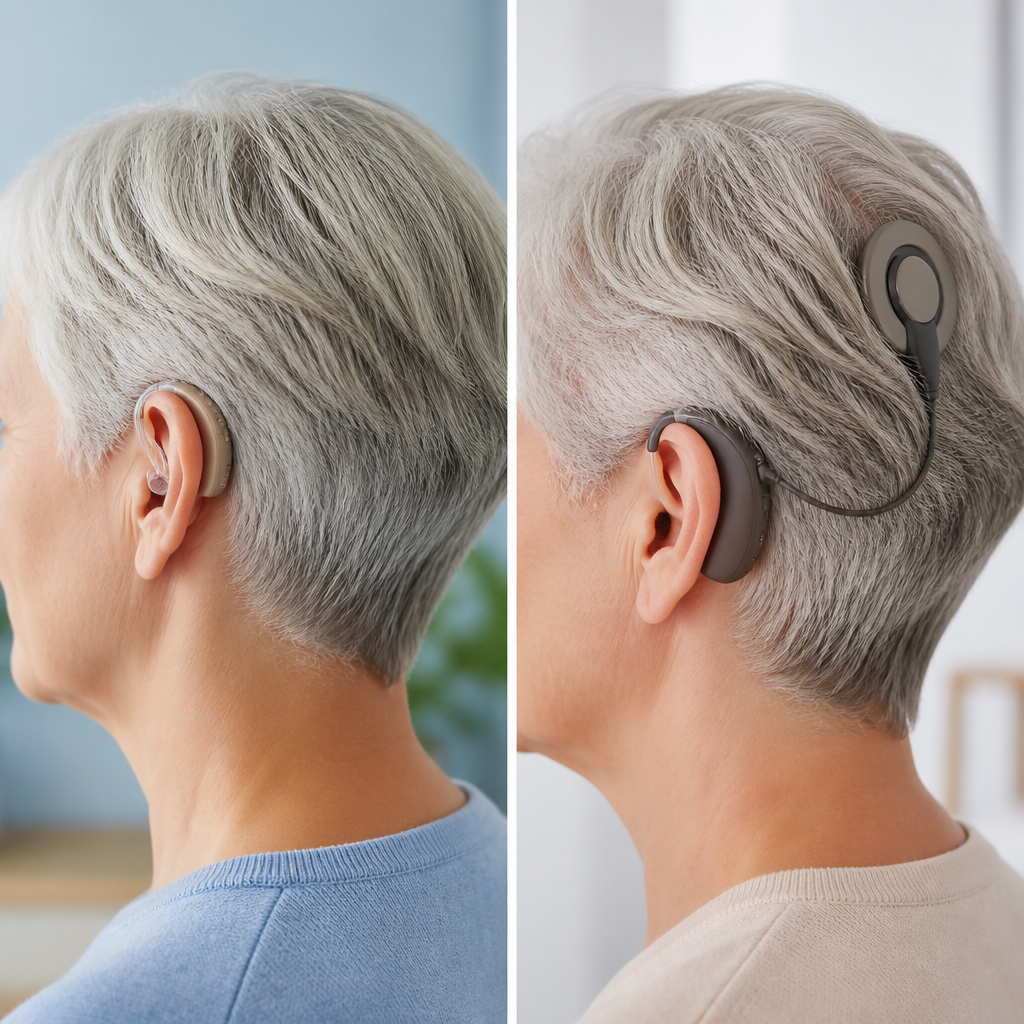
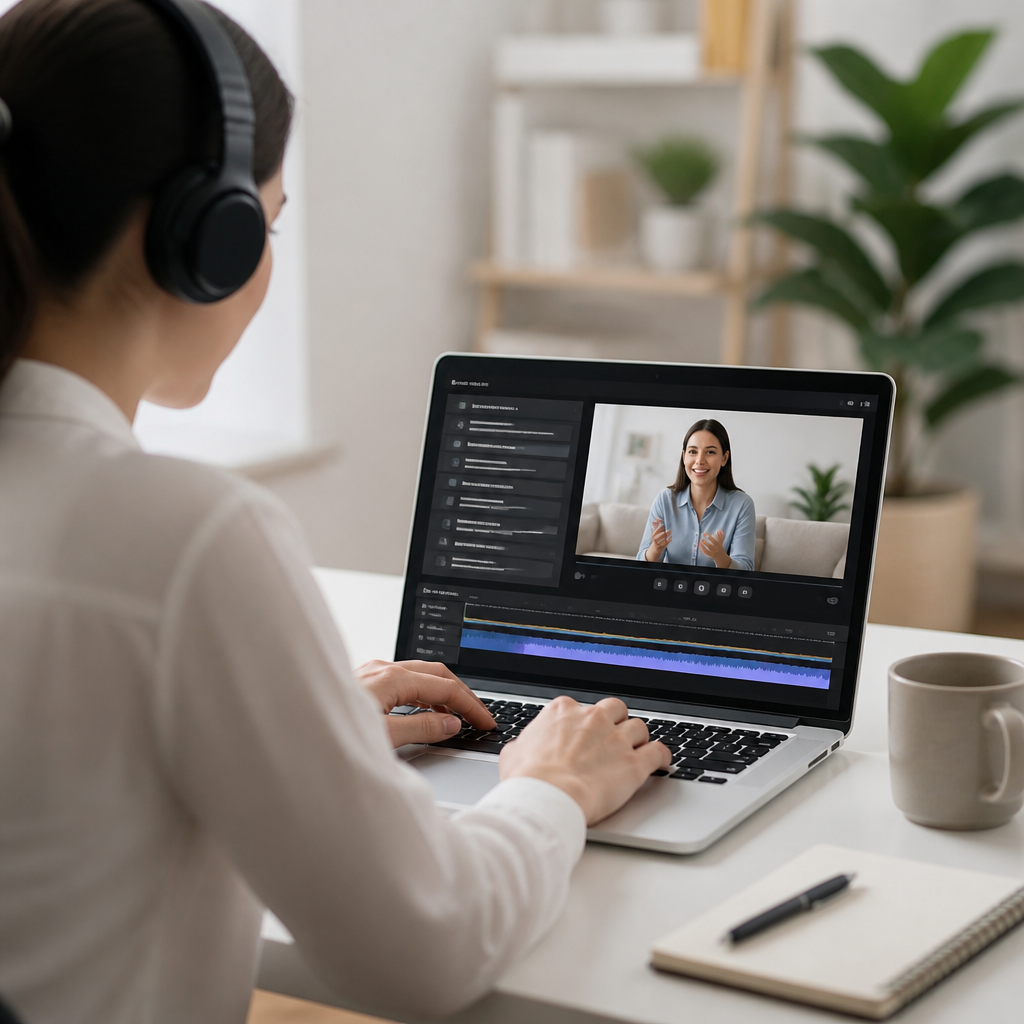
Captioning tools convert spoken language into readable text, and transcription tools turn audio or video into a written record that can be searched, edited, stored, and shared. In practice, the two categories overlap, but they serve different moments: captions support live or recorded viewing, while transcripts support review, documentation, accessibility, and repurposing. For the Deaf and hard of hearing community, these tools are not optional extras. They are a core part of equal access in classrooms, workplaces, healthcare settings, public events, streaming media, and everyday conversations.
I have worked with captioning workflows for webinars, training libraries, meetings, and social video, and the pattern is consistent: the right tool improves comprehension, retention, and participation, while the wrong tool creates friction even when the technology looks impressive. A platform may promise real-time captions in seconds, but if speaker labels are missing, domain-specific terms are mangled, or exports are locked behind a proprietary format, the result is less useful than it appears. Understanding how captioning tools work helps users, families, educators, employers, and content teams choose technology that delivers access rather than just automation.
This hub article explains the main types of captioning and transcription tools, how accuracy is measured, which features matter most, where common failures occur, and how to evaluate products for real use. It also covers live captions, CART services, automatic speech recognition, subtitle file formats, editing workflows, privacy concerns, multilingual support, and integration with meeting and video platforms. If you need a clear foundation for captioning and transcription tools, this guide will give you the terminology, the tradeoffs, and the practical criteria needed to make informed decisions.
What captioning and transcription tools actually do
Captioning tools display spoken content as text synchronized to audio or video. They may also include non-speech information such as music cues, laughter, applause, or sound effects, which is especially important when the viewer cannot rely on hearing alone. Transcription tools create a text version of speech that can stand alone as a document or serve as the raw material for captions, notes, summaries, translations, and searchable archives. Some platforms do both in one workflow, but the output still needs to be judged by purpose.
The most important distinction is between open captions, closed captions, subtitles, and transcripts. Open captions are burned into the video image and cannot be turned off. Closed captions can be switched on or off by the viewer and are usually delivered through a sidecar file or player support. Subtitles traditionally assume the viewer can hear the audio and therefore focus on dialogue translation rather than full sound access, though many platforms use the terms loosely. A transcript is not time-synced in its simplest form, but many systems now generate interactive transcripts that link text to playback time.
In real projects, tool choice starts with the content environment. A university lecture needs searchable archives and accurate technical vocabulary. A live town hall needs low-latency display and strong speaker tracking. A short-form social video may need open captions optimized for mobile viewing because many users watch with sound off. A medical appointment may require a human captioner because terminology and consequences demand higher accuracy than a consumer app can guarantee. The best tool is the one aligned with context, not the one with the longest feature list.
The main types of captioning tools and when each one fits
Most captioning and transcription tools fall into four groups: automatic speech recognition platforms, human-generated captioning services, communication accessibility services such as CART, and hybrid systems that use AI first and human review second. Automatic speech recognition, often shortened to ASR, powers tools built into Zoom, Microsoft Teams, Google Meet, YouTube, Otter, Trint, Descript, Rev, and many mobile operating systems. These systems are fast and affordable, and they work well for clean audio, common accents, and low-stakes internal content. Their weakness is inconsistency under difficult audio conditions.
Human-generated captioning services use trained professionals to create or edit captions and transcripts. They cost more, but they outperform raw ASR for accuracy, punctuation, speaker identification, and context. Human captioners catch names, acronyms, overlapping speech, and industry language that automated systems often miss. CART, or Communication Access Realtime Translation, is a specialized live service in which a trained captioner provides near real-time text for events, classes, meetings, and legal or public settings. CART remains the gold standard for many live accessibility needs because quality depends on expert listening and stenographic skill rather than prediction alone.
Hybrid workflows are increasingly common because they balance speed and quality. A video team may run a webinar recording through an ASR engine, then use an editor to fix timing, punctuation, terminology, and sound cues before publishing. This approach can dramatically reduce turnaround time while still meeting accessibility expectations. The practical lesson is simple: live, legal, educational, medical, and public-facing content usually justifies a higher-accuracy workflow. Internal drafts, personal notes, and quick social clips may be fine with automation if someone still checks the output before it matters.
| Tool type | Best use case | Main strength | Main limitation |
|---|---|---|---|
| Built-in ASR captions | Meetings, rough drafts, quick turnaround videos | Fast and low cost | Accuracy drops with noise, jargon, and accents |
| Human captioning service | Published media, training, compliance-sensitive content | High accuracy and better formatting | Higher cost and longer turnaround |
| CART | Live classes, events, public meetings, accommodations | Strong real-time accessibility | Scheduling and provider availability |
| Hybrid AI plus editor | Webinars, courses, marketing video libraries | Good speed-to-quality balance | Still requires review time |
How accuracy, latency, and formatting determine real accessibility
People often ask what makes one captioning tool better than another. The direct answer is accuracy first, then latency, readability, and export flexibility. Accuracy means more than individual word recognition. It includes punctuation, speaker attribution, capitalization, timing, line breaks, and treatment of names, numbers, and technical terms. A transcript that says the right words but assigns them to the wrong speaker can mislead a reader. Captions that appear five seconds late can make a discussion impossible to follow. Accessibility depends on the full experience, not a single benchmark.
Many vendors discuss word error rate, or WER, as a quality measure. WER compares the system output against a reference transcript and counts substitutions, deletions, and insertions. It is useful, but it does not capture everything a Deaf viewer needs. For example, WER may look acceptable while the file still lacks sound cues, compresses multiple speakers into one block, or creates unreadable line timing. In my own reviews, I also look at whether captions respect natural phrase boundaries, avoid covering essential on-screen text, and remain readable on mobile screens where line length matters.
Latency is especially important in live settings. Automatic captions can appear quickly, but fast is not always usable. If the stream lags during audience questions or fails during crosstalk, the participant loses access at exactly the point where interaction matters most. Formatting is another overlooked factor. Good captions use consistent segmentation, sensible punctuation, and enough display time to read comfortably. They should also include non-speech information when relevant, because communication includes more than dialogue. A simple rule works well: if the missing detail would change meaning for a hearing viewer, it likely belongs in the caption track.
File formats, platform integrations, and workflow details that matter
Captioning tools become much easier to evaluate once you understand file formats and integrations. The most common caption file types are SRT, WebVTT, SCC, and TTML. SRT is widely supported and simple, making it common for websites and video hosting platforms. WebVTT works well on the web and supports additional positioning features. SCC is associated with broadcast workflows, while TTML appears in enterprise and streaming environments that need richer styling or standardization. A useful tool should let you export in at least one broadly compatible format and preferably several.
Integrations matter because captions rarely live in one system. A meeting may start in Zoom or Teams, be summarized in Notion or Google Docs, stored in a learning management system, and clipped into social video through Premiere Pro, Final Cut Pro, CapCut, or Descript. If the transcript cannot be exported cleanly, or if timestamps break when moved to another platform, teams lose time fixing preventable problems. The best tools fit into existing workflows with minimal friction. They preserve timestamps, identify speakers, support dictionary customization, and allow straightforward editing by non-specialists.
Another practical issue is whether the tool supports live captions, post-production captions, or both. Some systems are excellent at meeting transcription but weak for polished publication. Others offer precise caption editing yet no meaningful live support. Searchability is also valuable. Interactive transcripts let users click a word and jump to that moment in a video, which improves studying, compliance review, legal analysis, and newsroom research. For a hub page within Technology and Tools for the Deaf Community, the key point is this: software features only matter when they reduce barriers across real platforms, devices, and workflows people already use.
Choosing the right tool for education, work, media, and everyday communication
The best captioning tool depends on environment, stakes, and audience. In education, accuracy and searchable transcripts are crucial because students revisit lectures, technical terms, and instructions. Universities often combine lecture capture systems with human review or CART for accommodations. In workplace settings, built-in captions in Teams or Zoom may be sufficient for routine meetings, but high-stakes trainings, HR sessions, legal discussions, and executive presentations usually need cleaner transcripts and reliable archives. Employers should also remember that accessibility is not achieved by turning on a feature once; staff need guidance on microphone quality, turn-taking, and document sharing.
For media production, the requirements are stricter. Streaming platforms, marketing teams, and publishers need captions that are synchronized, styled appropriately, and checked against brand terminology. Social video adds another layer because captions must remain readable on small screens and often need open-caption formatting for autoplay feeds. Tools like Descript and Premiere Pro can speed editing, but they do not remove the need for final quality control. For podcasters and creators, transcripts also create value beyond accessibility by supporting show notes, quotations, summaries, and content repurposing across blogs, newsletters, and clips.
Everyday communication tools deserve attention too. Mobile live caption features, speech-to-text apps, and relay-style tools can help in spontaneous conversations, appointments, and customer service interactions. However, they should not be treated as universal replacements for professional accommodations. Background noise, multiple speakers, masks, poor microphones, and specialized vocabulary still challenge consumer-grade systems. When choosing any solution, test it in the exact environment where it will be used. A demo in a quiet office proves very little about performance in a classroom, factory floor, conference hall, clinic, or family gathering.
Privacy, bias, and the limits users should plan for
Captioning and transcription tools process sensitive information more often than buyers realize. Meeting transcripts may contain employee records, health details, financial data, legal strategy, student information, or unpublished research. Before adopting a tool, review data retention policies, storage location, encryption, training practices, and administrative controls. Some vendors use uploaded content to improve their models unless customers opt out. Others provide enterprise agreements, regional data hosting, access logs, and deletion controls. In regulated settings, these details are not minor settings; they are procurement requirements.
Bias and uneven performance are also real issues. ASR systems often perform worse with certain accents, dialects, code-switching, children’s voices, older recordings, and overlapping speech. They can also mis-handle names from underrepresented language backgrounds. These failures are not just technical inconveniences. They can exclude participants, distort records, and place extra labor on the people who already rely on captions. The practical response is to test tools with diverse speakers, build custom vocabularies where possible, and keep a human review step for important content. No serious accessibility strategy assumes perfect automation.
Finally, users should plan for failure modes. Internet outages interrupt cloud-based captioning. Platform updates change export behavior. Speakers forget microphones, share low-quality recordings, or speak over one another. Human providers may need prep materials in advance to handle technical terms well. Resilient workflows include backups: alternative caption feeds, prepared glossaries, saved transcripts, and clear support contacts. That level of planning may sound operational, but it is exactly what turns captioning from a checkbox into dependable access. Reliable accessibility comes from technology, process, and accountability working together.
Captioning and transcription tools matter because access to spoken information shapes access to education, employment, entertainment, healthcare, and public life. The core ideas are straightforward: captions are time-synced text for viewing, transcripts are written records for reference, and the best tool depends on context. Automatic tools offer speed and convenience, human services offer stronger accuracy, CART supports high-quality real-time access, and hybrid workflows often deliver the best balance for recorded content. What determines success is not marketing language but performance in real conditions.
When evaluating captioning tools, focus on the factors that directly affect usability: accuracy, latency, speaker labeling, sound cues, file format support, editing flexibility, privacy controls, and integration with the platforms you already use. Test tools with your actual content, your typical speakers, and your real environments. If the stakes are high, keep a human in the loop. If the content is public, published, instructional, legal, or medical, do not assume raw automation is enough. Accessible communication is built through standards, review, and consistent workflow decisions.
As the hub for Captioning and Transcription Tools within Technology and Tools for the Deaf Community, this guide should help you compare options with clearer expectations and better questions. Use it as a starting point for deeper pages on live captions, CART, subtitle formats, editing software, and meeting transcription platforms. The benefit is simple but significant: better tool choices lead to better access. Review your current setup, identify the biggest barrier, and improve one captioning workflow this week.
Frequently Asked Questions
What is the difference between captioning tools and transcription tools?
Captioning tools and transcription tools are closely related, but they are designed for different uses. Captioning tools create on-screen text that appears in sync with spoken audio, making video content easier to follow in real time or during playback. This is especially important for live events, webinars, meetings, training sessions, and recorded videos where viewers need immediate access to what is being said. Captions may also include relevant non-speech information such as speaker identification, music cues, or sound effects when needed for accessibility.
Transcription tools, by contrast, produce a full written record of spoken content from audio or video. A transcript is meant to be read, searched, edited, archived, quoted, translated, or repurposed into other formats such as articles, meeting notes, legal records, or study materials. While captions are tied to timing on a screen, transcripts are generally organized as a document. In real-world workflows, the two often overlap because the same source audio can be used to generate both. Still, the main distinction is simple: captions support viewing, while transcripts support review, documentation, accessibility, and content reuse.
Why are captioning and transcription tools so important for accessibility?
Captioning and transcription tools are essential because they help make spoken content accessible to people who cannot fully access audio alone. For Deaf and hard of hearing individuals, captions are not a convenience feature or an optional add-on. They are a foundational part of equal access. Without accurate captions or transcripts, people may be excluded from education, employment, healthcare communication, public information, entertainment, and digital participation more broadly.
Accessibility benefits also extend beyond one community. Captions help people in noisy environments, quiet spaces, or situations where audio cannot be played. Transcripts support users who prefer reading, need searchable records, or want to review information at their own pace. They can also improve comprehension for multilingual audiences and assist with note-taking, research, and compliance. When organizations treat captioning and transcription as core access tools rather than afterthoughts, they create content that is more inclusive, more usable, and more effective for everyone.
How accurate are automated captioning and transcription tools?
Automated captioning and transcription tools have improved significantly, but accuracy still depends on several variables. Clear audio, strong microphones, limited background noise, and speakers who talk at a steady pace all tend to produce better results. Accuracy can drop when audio includes overlapping speakers, accents the system has not been well trained on, technical vocabulary, poor recording quality, fast speech, or inconsistent volume levels. In live settings, automated captions can be helpful, but they may contain delays, miss words, or misinterpret names and specialized terms.
That is why many organizations use a hybrid approach. Automation can speed up the first draft, but human review is often necessary to correct errors, improve punctuation, identify speakers, and ensure accessibility quality. This is especially important when the content is high-stakes, such as legal proceedings, education, medical communication, compliance-driven content, or public-facing media. The best way to think about automation is as a useful starting point, not always a finished product. If accuracy matters, and in accessibility it usually does, review and quality control remain essential.
What features should you look for when choosing a captioning tool?
Start with the basics: accuracy, ease of editing, and dependable timing. A strong captioning tool should let you review generated captions, correct text easily, adjust synchronization, and export in common caption file formats such as SRT, VTT, or other platform-compatible options. If you work with live content, low latency matters because delayed captions can disrupt understanding. Speaker labeling, punctuation controls, custom vocabulary support, and the ability to handle industry-specific terminology are also valuable features, especially for professional or technical content.
Beyond core functionality, it is important to evaluate accessibility and workflow fit. Look for tools that support collaboration, version control, searchable archives, multilingual captioning or translation options, and secure storage if sensitive content is involved. Integration with video platforms, meeting software, learning systems, or content management tools can also save time. Most importantly, consider whether the tool supports actual access needs rather than just generating text quickly. A good captioning solution should help you produce captions that are readable, accurate, properly timed, and reliable enough to support equal participation.
Can one tool handle both captions and transcripts effectively?
Yes, many modern platforms can support both captions and transcripts, and for many teams that is the most practical setup. Because both outputs begin with speech-to-text processing, a single tool can often generate time-synced captions for video and a transcript document from the same audio source. This can streamline workflows, reduce duplicate work, and make it easier to maintain consistency across formats. For example, a webinar recording might need captions for playback, a transcript for attendees, and a searchable archive for internal reference. Using one system for all three can be efficient and cost-effective.
That said, effectiveness depends on the quality of the tool and the purpose of the content. Some platforms are stronger on caption timing and playback support, while others are better for transcript editing, document export, collaboration, and recordkeeping. If your priority is accessibility, it is important to confirm that the tool does not just offer both features in name, but performs both well. The ideal solution supports accurate text generation, easy editing, speaker identification, strong formatting controls, and output options that match how your audience will use the content. In short, one tool can absolutely handle both jobs, but it should be evaluated against real accessibility and content needs, not just convenience.