Choosing the best communication app for your needs starts with understanding what problem you need the app to solve, who you need to communicate with, and which accessibility features actually improve daily conversations. In the deaf community, “communication apps” can refer to several categories: text-based messaging apps, speech-to-text apps, video calling platforms for sign language, relay and captioned calling services, note-sharing tools, and workplace collaboration apps. I have tested these tools with interpreters, Deaf professionals, parents, teachers, and hard of hearing users, and the biggest mistake people make is treating every app as interchangeable. They are not. The right choice depends on context, language preference, device compatibility, privacy, and whether communication happens live, asynchronously, one-to-one, or in groups.
This matters because communication is not a convenience issue; it affects education, employment, healthcare access, family connection, and safety. A student may need fast classroom captions, a Deaf employee may need reliable team chat and accessible video meetings, and an older adult may simply need a clear way to contact family and healthcare providers. A good app reduces friction and supports independence. A poor app creates delays, errors, and exclusion. This guide explains how to evaluate communication apps, what features matter most, and how to match app types to real-world use cases so you can choose a toolset that works in everyday life.
Understand the Main Types of Communication Apps
The first step is to separate communication apps by purpose. Messaging apps such as WhatsApp, Signal, Telegram, and Apple Messages are best for text-first communication, quick media sharing, and group chats. Video apps such as FaceTime, Zoom, Google Meet, and Microsoft Teams are essential when sign language is the primary language because visual clarity, frame rate, and screen layout matter more than many hearing users realize. Speech-to-text apps like Ava, Otter, Live Transcribe, and built-in phone captioning tools help convert spoken language into readable text in meetings, classrooms, restaurants, or medical offices.
Another category includes relay and captioned calling services. Depending on country and provider, these services may connect users through text relay, video relay, or live captioned phone calls. In the United States, options may involve FCC-regulated relay services and specialized providers for captioned calls or video relay. For many users, these are not optional extras; they are core communication infrastructure. There are also workplace and classroom platforms like Slack, Microsoft Teams, Google Chat, and Canvas messaging, which may not be designed specifically for deaf users but can be highly effective when configured well.
When I help people compare tools, I advise them to think in scenarios rather than brand names. If your main need is family messaging, encrypted text and simple setup matter most. If your main need is sign language calls, camera quality and stable video matter more than transcription. If your main need is understanding speech during appointments, transcription accuracy, speaker identification, and exportable notes become the deciding factors.
Match the App to Your Communication Style and Language
No app is best for everyone because deaf and hard of hearing users communicate in different ways. Some people are native signers and prefer video communication. Others rely primarily on text. Some use spoken language with captions. Many switch methods depending on the setting. The best communication app is the one that aligns with how you naturally communicate under real pressure, not how a developer imagines accessibility should work.
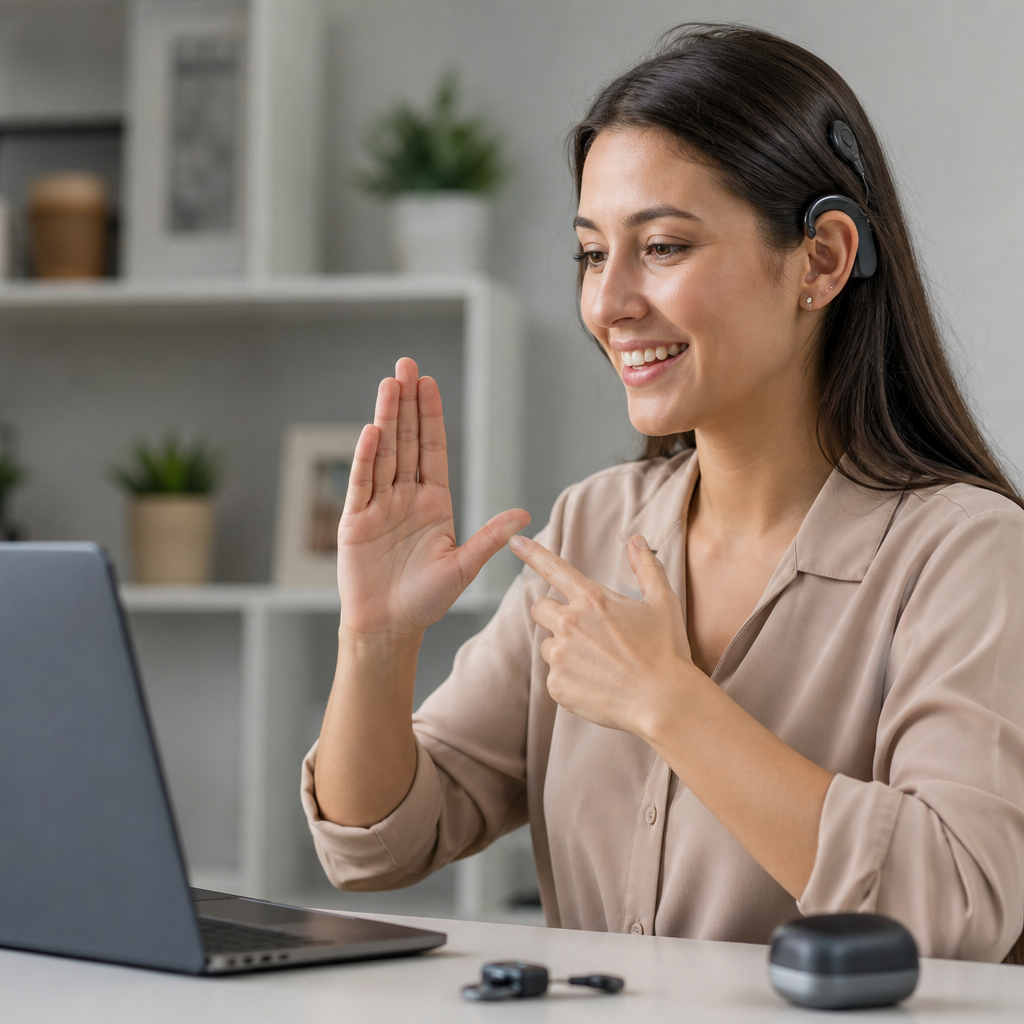
If you use American Sign Language, British Sign Language, or another signed language as your main language, prioritize apps with consistently sharp video, good low-light performance, gallery view options, and minimal lag. Compression artifacts and poor lighting ruin handshape visibility and facial grammar. FaceTime often performs very well for one-to-one Apple users, while Zoom and Google Meet are common for multi-person calls. If you rely on text, look for apps with message threading, pinned chats, searchable history, and fast media sharing. Signal is strong for privacy, while WhatsApp remains popular because many families already use it.
If you need speech access, test transcription tools in your real environments. Live speech-to-text can work surprisingly well in quiet rooms and fail badly in crowded spaces, with accents, or when technical terms are used. Otter may be useful for meetings and note review, while Live Transcribe is often valued for simple, immediate captions on Android. Built-in features on iPhone, Android, and modern desktops have improved, but built-in does not always mean best. The only reliable method is to test with your own contacts, your own workplace vocabulary, and your own daily conditions.
Evaluate Accessibility Features That Matter in Daily Use
Accessibility should be evaluated feature by feature, not by marketing claims. The most useful communication app features for deaf users usually include live captions, transcription accuracy, adjustable text size, vibration and visual alerts, compatibility with hearing devices, keyboard support, cross-device syncing, and easy media sharing. For sign language users, camera controls, screen pinning, and the ability to keep interpreters visible during meetings are practical necessities.
Notification design is more important than many reviews admit. An app can have excellent captions and still fail if alerts are easy to miss. Strong vibration patterns, flash notifications, wearable integration, and customizable banner behavior can make the difference between a missed message and a seamless conversation. In workplace settings, read receipts, status indicators, and integrations with calendars or project tools also reduce communication gaps.
Captions deserve special scrutiny. Ask whether captions are automatic or human-assisted, available on all devices or only some, and whether they are stored, editable, or exportable. Also ask who controls the caption feature in group meetings. In some platforms, the host must enable captions, which can create barriers. In medical or legal settings, remember that automatic captions are helpful but not infallible. I have seen them misrender medication names, proper nouns, and numbers. For high-stakes communication, accuracy standards matter more than convenience.
Compare Security, Privacy, and Reliability Before You Commit
Security and privacy are central when communication includes health information, school records, work documents, or family conversations. End-to-end encryption is a meaningful differentiator for messaging apps, but it is only one part of trust. Also check account recovery options, device linking rules, admin controls for group spaces, and whether transcripts are stored in the cloud. Signal is widely respected for privacy architecture, while WhatsApp offers end-to-end encryption with broader mainstream adoption. Enterprise tools like Microsoft Teams may offer strong organizational controls, but data retention is often governed by the employer.
Reliability is equally important. A feature-rich app is not useful if calls drop, captions lag, or messages arrive late. Test performance on weak Wi-Fi, mobile data, older phones, and mixed operating systems. I have repeatedly seen families choose one app for its popularity, then abandon it because a grandparent’s tablet could not run it smoothly or because Android and iPhone users had inconsistent experiences. For deaf users, reliability is not a minor annoyance issue. A frozen screen during a signed call or delayed caption feed can break understanding completely.
| Use Case | Best App Type | Top Features to Prioritize | Common Limitation |
|---|---|---|---|
| Family and friends | Messaging app | Easy setup, media sharing, strong alerts, broad adoption | Privacy and backup settings vary |
| Sign language conversations | Video calling app | High video quality, low latency, pinning, gallery view | Quality depends heavily on bandwidth |
| Meetings and classes | Speech-to-text app | Caption accuracy, speaker labels, transcript export | Accuracy drops in noisy rooms |
| Phone access | Relay or captioned calling service | Regulatory support, call clarity, quick connection | Availability differs by country |
| Work collaboration | Team communication platform | Threading, file sharing, integrations, searchable history | Accessibility varies by organization setup |
Choose Based on Specific Environments: Home, School, Work, and Healthcare
The best communication app often changes by environment. At home, simplicity usually wins. Family members need low-friction tools they will actually use, which is why mainstream messaging apps remain so important. A technically superior app fails if relatives refuse to install it. For school, communication needs are broader: live captions for lectures, messaging for assignments, video for interpreters or tutoring, and cloud notes for review. Students should check whether the institution supports captions natively in Zoom, Teams, or Meet and whether transcripts can be saved for study.
At work, the evaluation should include internal workflows. Slack may be excellent for text-based team coordination, while Microsoft Teams is often unavoidable in larger organizations using Microsoft 365. In my experience, deaf professionals benefit most when chat becomes the default for quick questions, meetings include enabled captions by policy, and video platforms allow interpreter visibility without constantly rearranging screens. For healthcare, speed and accuracy matter more than convenience features. Messaging with clinics, remote telehealth video quality, and clear captioning can reduce misunderstandings, but automatic captions should never replace qualified interpretation where legally or medically necessary.
Travel and public situations create another layer of need. Restaurant ordering, transport questions, emergency communication, and check-in counters may call for quick note apps, offline transcription, or pre-typed messages. Some users keep multiple apps because no single tool works everywhere. That is often the smartest approach. The goal is not app minimalism. The goal is reliable communication across situations.
Test Before Adopting and Build a Practical App Stack
The most effective way to choose a communication app is to run a short structured test. Start with three scenarios you face every week, such as group family chat, work meetings, and in-person conversations with hearing staff. For each candidate app, test setup time, accessibility settings, battery impact, transcription quality, video clarity, and how quickly another person can respond without training. Include at least one noisy environment and one low-bandwidth environment. You will learn more in two days of testing than in two hours of reading app store reviews.
I recommend building a small app stack rather than searching for one perfect platform. For many users, a practical setup includes one mainstream messaging app, one strong video app for sign language, one transcription tool for in-person speech, and one workplace or school platform required by the institution. This layered approach reflects reality. Communication needs are diverse, and specialized tools outperform all-in-one promises in many situations.
Review cost, subscription tiers, and device support before finalizing your choices. Some apps hide important features behind paid plans, including transcript exports, longer meeting times, or advanced admin controls. Also look at onboarding. If a parent, teacher, interpreter, or coworker cannot learn the app quickly, adoption will fail. Finally, revisit your choices every year. Accessibility features improve rapidly, operating systems add new caption tools, and your own needs may change with work, school, or family life.
The best communication app for your needs is the one that fits your communication style, works reliably in your real environments, and removes barriers instead of adding new ones. Messaging apps support everyday connection, video platforms enable signed conversations, transcription tools improve access to spoken communication, and relay or captioned calling services extend phone access when needed. There is no universal winner because deaf and hard of hearing users do not share one communication method, one device ecosystem, or one daily routine.
The smartest way to choose is to define your top situations, prioritize the accessibility features that matter in those moments, and test apps under realistic conditions. Focus on video quality for sign language, caption accuracy for speech access, notification strength for responsiveness, and privacy controls for sensitive conversations. Keep in mind that many people need a combination of tools, not a single app. That is normal and often ideal.
As a hub for communication apps within the broader world of technology and tools for the deaf community, this guide should help you narrow the field with confidence. Start by listing your three most common communication challenges, compare app types against those needs, and trial the strongest options this week. A better communication setup can improve independence, reduce stress, and make daily interactions more accessible.
Frequently Asked Questions
1. How do I choose the best communication app for my specific needs?
Start by identifying the exact communication problem you need to solve, because the best app for one situation may be the wrong fit for another. Some people need a simple text-based messaging app for everyday conversations with family and friends, while others need speech-to-text tools for in-person discussions, reliable video calling for sign language, or captioned and relay calling services for phone access. In many cases, the right solution is not a single app but a small set of apps that each handle a different type of communication well.
It also helps to think about who you communicate with most often. If your main priority is talking with hearing coworkers, you may need an app with strong live captioning, note-sharing, and workplace collaboration features. If you primarily communicate in sign language, video quality, screen stability, and ease of joining calls matter more than features designed around voice. If you need support in public places such as doctor’s offices, stores, or school meetings, then fast and accurate speech-to-text may be more important than chat features.
Finally, evaluate accessibility in real-world use, not just in the app description. Look at whether captions are accurate enough to follow conversations, whether video is clear enough for signing, whether notifications are easy to notice, and whether the interface is simple to use under stress. A communication app should reduce friction, not add more work. The best choice is the one that fits your daily routines, your preferred communication style, and the people you need to reach most often.
2. What types of communication apps should I compare before making a decision?
There are several major categories worth comparing, and each serves a different purpose. Text-based messaging apps are often the most universal option because almost everyone already uses some form of chat. These apps are useful for quick questions, group conversations, media sharing, and maintaining a written record of what was said. They are usually a strong baseline option, but they may not be enough when you need live, back-and-forth communication in real time.
Speech-to-text apps are especially valuable for face-to-face conversations with hearing people. They can help in meetings, appointments, classroom settings, and casual daily interactions by converting spoken language into readable text. The key differences between apps in this category often come down to caption accuracy, speed, speaker recognition, punctuation, transcript saving, and how well they perform in noisy environments.
Video calling platforms are another essential category, particularly for people who communicate in sign language. In these cases, visual clarity matters more than audio features. A good platform should provide smooth video, minimal lag, reliable connection quality, and a layout that makes it easy to see facial expressions, handshapes, and body movement clearly. You may also want to compare relay and captioned calling services if phone communication is important, as well as note-sharing tools and workplace collaboration apps if your needs are tied to school or professional communication. Looking at these categories side by side makes it easier to build a practical communication toolkit instead of expecting one app to do everything perfectly.
3. Which accessibility features matter most in a communication app?
The most important accessibility features depend on how you communicate, but a few consistently make the biggest difference. For speech-to-text apps, accuracy, speed, and readability are critical. If captions lag too much, miss key words, or break up sentences in confusing ways, the conversation becomes exhausting to follow. Helpful features include large text display, transcript saving, speaker labels, adjustable text size, dark mode, and easy copying or sharing of notes after the conversation.
For video-based communication, especially for sign language users, the app should prioritize stable, high-quality video and a clean interface. Small participant windows, blurry resolution, weak lighting adjustment, or unstable connections can make signing much harder to understand. Features like easy pinning of speakers, predictable screen layouts, and quick call joining links can noticeably improve the experience. If an app constantly rearranges the screen or compresses video too aggressively, it may look polished but perform poorly for visual communication.
General usability features matter too. Strong notification settings, vibration alerts, cross-device syncing, clear menus, and dependable performance all contribute to accessibility. Privacy and security should also be part of the conversation, especially if you use the app for healthcare, education, or work. The best accessibility feature is not always the most advanced one on paper; it is the one that consistently makes communication easier, faster, and less stressful in everyday life.
4. Is it better to use one communication app for everything or different apps for different situations?
In most cases, using different apps for different situations is the more practical approach. Communication needs are rarely identical across personal life, work, appointments, travel, and emergencies. An app that is excellent for messaging may offer poor live captions. A video platform that works well for sign language may not be ideal for team collaboration. A speech-to-text app that shines in one-on-one conversations may struggle in group settings or loud environments. Trying to force one app to cover every scenario often leads to frustration.
Many people benefit from creating a simple communication setup built around their routines. For example, you might use a familiar messaging app for everyday written conversations, a dedicated speech-to-text app for in-person interactions, a high-quality video calling platform for sign language communication, and a workplace collaboration tool for meetings and shared documents. This kind of setup gives you flexibility without requiring every tool to be perfect at everything.
The key is to keep the system manageable. You do not need dozens of apps. You just need the few that solve your most common communication challenges reliably. Choose tools that are easy to open quickly, simple to explain to other people, and dependable in the places where you actually use them. The best communication strategy is usually not “one app does all,” but “the right app is ready when I need it.”
5. How can I test whether a communication app will actually work for me before committing to it?
The best way to test a communication app is to use it in the situations where you will actually depend on it. Do not judge it only by screenshots, feature lists, or reviews. Try it during a real conversation with a friend, in a meeting, on a video call, or while navigating a public interaction such as a store visit or appointment. Pay attention to how quickly you can open the app, whether the other person understands how to use it, and whether the app helps the conversation flow naturally or interrupts it.
During testing, focus on a few practical questions. Is the text easy to read? Are captions accurate enough to trust? Is the video clear and smooth enough for sign language? Does the app perform well in background noise or weaker internet conditions? Can you save transcripts or notes if needed? Are alerts strong enough that you will not miss messages or calls? These day-to-day details often matter more than long lists of extra features you may never use.
It is also smart to test comfort and consistency over time. An app may seem impressive in a five-minute demo but feel tiring after a week of real use. If possible, compare two or three options side by side and notice which one feels the most natural in your routine. A good communication app should make interactions easier, quicker, and more confident. If you find yourself constantly correcting it, explaining it, or working around its limitations, it is probably not the best fit for your needs.