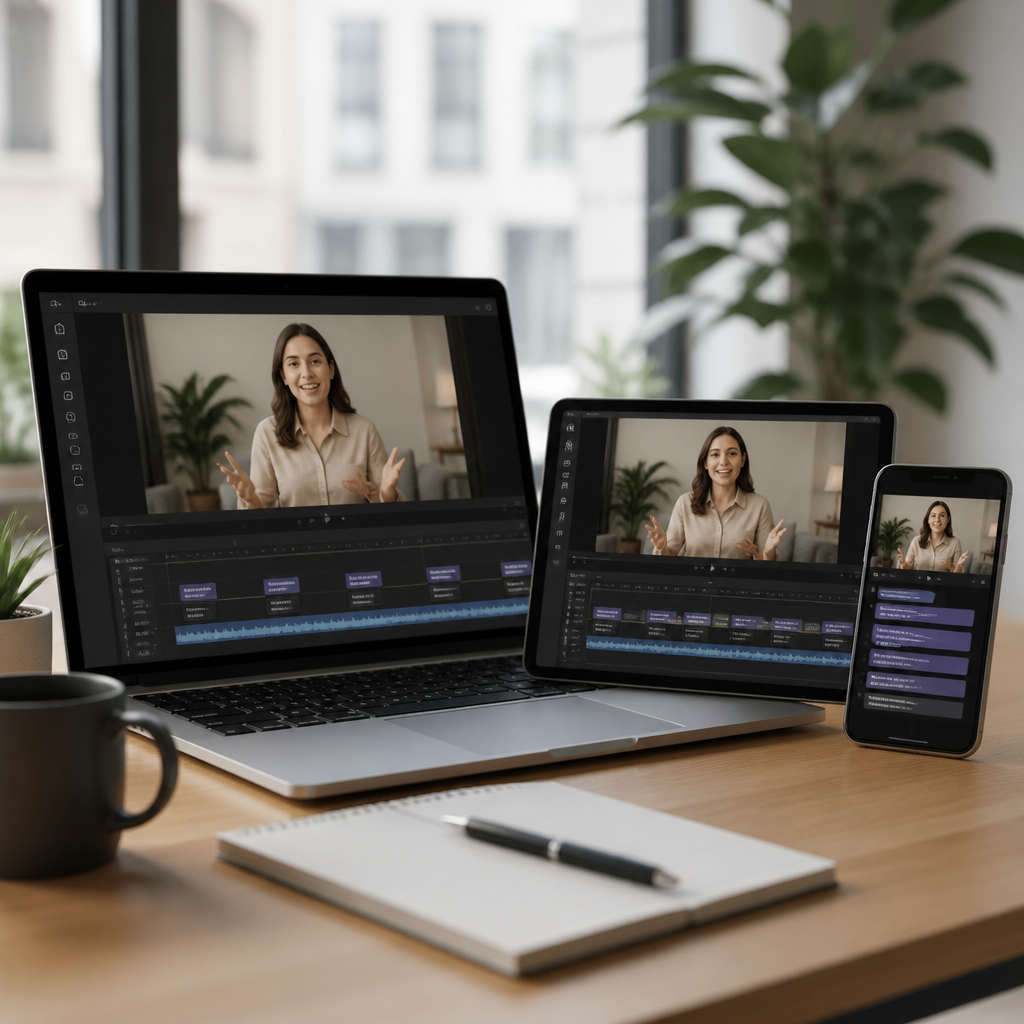
Choosing the best captioning app is not just a convenience decision; for many deaf and hard of hearing people, it directly affects access to conversations, work meetings, classes, telehealth appointments, videos, and everyday independence. Captioning apps use automatic speech recognition to turn spoken words into on-screen text in real time or during playback. Some focus on live communication, some specialize in recorded video captions, and others try to do both. The biggest divide is usually free versus paid: free apps reduce barriers to entry, while paid apps often promise better accuracy, stronger privacy controls, export options, speaker labels, and customer support.
Within the broader landscape of technology and tools for the deaf community, product reviews and comparisons matter because no single app is best for every use case. I have tested captioning tools in noisy coffee shops, quiet offices, Zoom calls, and recorded video workflows, and the differences become obvious fast. An app that performs well for solo dictation can fail badly in group discussions. Another may caption English cleanly but struggle with accented speech, technical terms, or crosstalk. Price also matters in a practical way. A student may need a no-cost solution today, while a freelancer might justify a subscription if captions save billable hours and reduce communication friction.
This hub article compares the best captioning apps across the needs that actually shape buying decisions: live conversation quality, video captioning workflow, operating system support, privacy, multilingual features, and value. It also serves as a central guide for deeper product reviews in this subtopic, helping readers narrow the field before moving into tool-specific analysis. If you are asking which captioning app is most accurate, which free captioning app is worth using, or whether paid captioning apps are worth it, the short answer is this: the best option depends on whether you need live accessibility, content creation, or both, and whether reliability under real-world conditions matters more than cost alone.
Before comparing tools, it helps to define a few terms clearly. Live captioning means speech is transcribed as it happens, usually for conversations, calls, meetings, or events. Closed captions for video are timed text tracks that can be turned on or off. Open captions are burned into the video image and always visible. Automatic captions are generated by software; human-edited captions are reviewed for accuracy, punctuation, speaker identification, and timing. Accuracy is commonly discussed as word error rate, but in practice readability matters just as much. A caption stream can be technically close while still being hard to follow if punctuation, line breaks, or speaker changes are handled poorly.
How to judge a captioning app fairly
The most useful way to compare captioning apps is to score them against the situations where captions either help or fail. In my testing, five factors separate good tools from frustrating ones. First is recognition accuracy in normal speech, accented speech, and background noise. Second is latency, meaning how quickly text appears after words are spoken. Third is formatting: punctuation, capitalization, speaker labels, and readable line segmentation. Fourth is workflow support, such as transcript export, caption file formats like SRT and VTT, and integration with Zoom, Google Meet, YouTube, or editing software. Fifth is privacy, including whether audio is processed on-device or sent to the cloud and whether transcripts are stored.
Free tools often perform surprisingly well in controlled conditions. Google Live Transcribe, for example, remains one of the strongest no-cost choices for Android users who need live captions in face-to-face communication. Apple Live Captions on supported devices has improved quickly and is valuable because it is built into the operating system. Otter’s free plan is useful for short meetings and note capture, but the limits on monthly minutes and features push many active users toward paid tiers. For video creators, free auto-captioning inside YouTube, CapCut, and some editing apps can be good enough for drafts, but they usually need cleanup before publication.
Paid tools earn their cost when captions are mission critical. Ava is widely used in classrooms, workplaces, and group settings because it was designed around accessibility rather than just general transcription. Otter Pro adds meeting automation, summaries, and better collaboration. Rev offers both automatic and human captioning, which matters when legal compliance, publication quality, or archived training content requires a higher standard. In business settings, Microsoft Teams and Zoom also offer built-in live captions and transcripts, but their value depends heavily on the organization’s existing subscriptions and admin settings rather than on accessibility features alone.
Best free captioning apps for everyday access
If you need a free captioning app for daily communication, start by matching the tool to your device. Android users should look first at Google Live Transcribe. It is fast to set up, supports many languages, and handles one-on-one conversations well in quiet to moderately noisy places. It also includes sound event notifications for things like doorbells and alarms, which adds practical accessibility beyond speech. Its biggest limits are that it is not a full meeting platform, export options are basic compared with paid apps, and performance drops when multiple people talk over each other.
Apple users should consider Live Captions if their device supports it. Because it is integrated at the operating-system level, it can caption live conversations, media, and some call audio without needing a separate app workflow. The advantage is convenience and system-wide access. The tradeoff is that support varies by device and language, and features may not be as mature or collaborative as specialized apps. In my experience, built-in tools are excellent as a baseline safety net, but less dependable than dedicated services when you need saved transcripts, named speakers, or polished exports.
Otter’s free plan remains one of the most recognizable options because it combines transcription, meeting notes, and searchable archives in one interface. For students and professionals, that search function can be more valuable than pure live caption display. However, free-tier minute caps make it better for occasional use than for full-time accessibility. Another free route is platform-native captioning in Google Meet, Zoom, and YouTube. These options cost nothing beyond the platform itself and can work well for scheduled digital events, but they are not consistent replacements for a dedicated mobile captioning app in spontaneous in-person situations.
| App | Best for | Free option | Main limitation |
|---|---|---|---|
| Google Live Transcribe | In-person conversations on Android | Yes | Weak for overlapping speakers and advanced exports |
| Apple Live Captions | System-wide captioning on supported Apple devices | Yes | Device support and collaboration features are limited |
| Otter | Meetings, notes, searchable transcripts | Yes | Free minutes run out quickly for heavy users |
| Zoom or Google Meet captions | Online classes and meetings | Yes | Best only inside their own platforms |
| YouTube auto-captions | Draft captions for published video | Yes | Needs editing for accuracy and timing |
Best paid captioning apps when accuracy and workflow matter
Paid captioning apps are worth considering when captions are not optional. Ava is one of the strongest choices for group communication, especially in education and workplace environments. Its interface is built around live accessibility, and features such as speaker color coding, shared conversation views, and support for professional captioners make it more purpose-built than general note-taking apps. That focus matters. In a classroom seminar or team standup, the problem is not only converting words into text; it is keeping turns, speakers, and context understandable at speed. Ava generally handles that better than free consumer tools.
Otter Pro is often the best paid option for people who live in meetings. It integrates well with Zoom, Google Meet, and Microsoft Teams, and its automated summaries, highlights, and searchable transcript history can save significant time. I have seen teams rely on it less as an accessibility tool and more as an operational memory system, which can be beneficial for deaf and hard of hearing users because it normalizes captions and transcripts for everyone. The caution is that Otter still performs best in structured meetings with clear audio. It is less impressive in chaotic in-person group discussions.
Rev takes a different position in the market because it offers both AI-generated captions and human-edited services. For creators, marketers, trainers, and organizations with compliance obligations, this hybrid model is important. Automatic captions are faster and cheaper; human review raises accuracy, especially for names, jargon, medical terms, legal language, and speaker identification. If you publish videos to broad audiences, quality captions are not optional because poor captions hurt comprehension, accessibility, and retention. Rev’s cost can be higher than app subscriptions, but for polished video assets, the output often justifies the spend.
Other paid options deserve mention depending on your workflow. Web Captioner is popular for browser-based live captions and event setups, though users often pair it with other tools. CapCut and Descript are strong for creators who need caption styling, editing, and social video exports rather than accessibility-first conversation support. Descript, in particular, is powerful for editing audio and video by transcript, which changes production speed dramatically. Still, it is best understood as a creator platform with captioning features, not a universal accessibility app for daily communication.
Free versus paid: what you actually gain by subscribing
The central question is simple: what does a paid captioning app give you that a free captioning app does not? Usually, it gives you more reliability, longer usage limits, better organization, and cleaner outputs. Reliability includes stronger handling of multi-speaker conversations, less aggressive cutoffs during pauses, and more consistent punctuation. Usage limits matter because accessibility tools become stressful when you are always watching the clock. Organization covers transcript storage, search, folders, keyword highlights, and integrations with calendars or cloud drives. Cleaner outputs include export formats, edited captions, and easier sharing with colleagues, interpreters, teachers, or clients.
Privacy is another major difference. Free tools may process audio in the cloud with fewer administrative controls, while paid enterprise tiers often provide retention settings, user management, and clearer data handling terms. That does not automatically make paid options private by default, but organizations in healthcare, education, and legal services should review policies carefully. If protected or sensitive information is being discussed, privacy practices matter as much as accuracy. In my own consulting and product testing, this is often the factor that narrows the shortlist fastest, especially when teams assume all transcription apps operate under identical rules.
There are also hidden costs on both sides. A free app that mishears key details may cost time, missed information, or social fatigue. A paid app may cost money but reduce repetition, follow-up emails, and editing labor. For a creator posting daily short-form videos, auto-captions with manual cleanup inside CapCut may be enough. For a deaf employee in back-to-back meetings, unlimited transcripts and dependable speaker separation can be worth every dollar. The right comparison is not only subscription price. It is total communication value in the setting where captions are most needed.
How to choose the right app for your specific situation
The best captioning app depends on where and how you use it. For in-person one-on-one conversations, prioritize low latency, large readable text, and quick launch access on your phone. For online meetings, choose a tool with native integrations and transcript export. For recorded video, pick a platform that supports SRT or VTT files, editing, timing adjustments, and style controls. For school or work accommodations, look for multi-speaker readability, device compatibility, and admin-friendly privacy settings. If your needs span all three categories, expect to use more than one tool rather than forcing a single app into every task.
A practical buying process works better than feature chasing. Test your top two or three apps in the exact environments that matter most: a noisy restaurant, a lecture hall, a family video call, or a conference room with six people. Read one transcript afterward and ask concrete questions. Were names correct? Did the app mark speakers? Could you export and share the result easily? Did the captions appear quickly enough to follow naturally? Was the interface calming or distracting? Those answers are more valuable than marketing claims because caption quality changes dramatically with environment, microphone placement, and speaking style.
As the hub for product reviews and comparisons within technology and tools for the deaf community, this guide points to a clear conclusion. Free captioning apps are essential and often impressive, especially Google Live Transcribe, Apple Live Captions, platform-native meeting captions, and Otter’s entry tier. Paid captioning apps become the better choice when you need longer sessions, stronger multi-speaker performance, better exports, cleaner video workflows, or more confidence around privacy and support. Ava stands out for accessibility-centered live communication, Otter Pro for meeting capture and searchable records, and Rev for publication-grade captions and human review.
The main benefit of comparing captioning apps carefully is simple: better access with fewer compromises. Instead of downloading the most popular app and hoping for the best, match the tool to your communication setting, device, and budget. Start with a free option if you need immediate support, then upgrade only when real limitations appear in daily use. If you are building your toolkit under the broader deaf technology category, use this page as your comparison hub and move next to detailed reviews of the apps that fit your situation best.
Frequently Asked Questions
1. What is the main difference between free and paid captioning apps?
The biggest difference between free and paid captioning apps usually comes down to accuracy, speed, features, and reliability. Free apps can be very useful for basic, everyday situations, especially when someone needs quick access to live captions for casual conversations, short videos, or occasional meetings. Many free tools now use strong automatic speech recognition, so they can perform surprisingly well in quiet environments with one clear speaker. However, free plans often come with limits such as capped usage time, fewer export options, basic customization, ads, internet dependence, or reduced support for specialized situations.
Paid captioning apps typically offer more consistent performance in real-world conditions where speech is less predictable. That includes group conversations, workplace meetings, online classes, medical appointments, accented speech, technical terminology, and noisy environments. They may also include useful premium features such as speaker labels, saved transcripts, custom vocabulary, offline access, better integration with Zoom or video platforms, editable captions, team collaboration, and stronger privacy controls. For deaf and hard of hearing users, those differences are not minor extras—they can determine whether a conversation is accessible or frustrating. In practice, free apps are often best for light or occasional use, while paid apps are usually the better choice when captioning needs to be dependable every day.
2. Are free captioning apps accurate enough for work, school, or medical conversations?
Sometimes, but it depends heavily on the app and the situation. Free captioning apps can be accurate enough for simple conversations when audio quality is good, speakers talk clearly, and background noise is limited. In those conditions, many users can follow along reasonably well. The problem is that important conversations are not always simple. Work meetings may involve multiple speakers, industry jargon, acronyms, or fast-paced discussion. Classes may include lectures, student questions, and specialized vocabulary. Telehealth appointments may involve medication names, symptoms, or treatment instructions where a single error can create confusion.
That is where the limits of many free apps become more noticeable. If the app struggles with speaker changes, weak microphones, overlapping voices, or subject-specific language, the transcript may become incomplete or misleading. A paid app may not be perfect, but it is more likely to provide tools that improve understanding, such as custom word lists, higher-quality transcription engines, saved conversation history, or better performance under less-than-ideal conditions. For high-stakes settings like school, employment, legal discussions, and healthcare, it is smart to test any app in advance rather than assuming “free” automatically means “good enough.” If missed words could affect access, safety, or decision-making, a more robust paid option is often worth the cost.
3. Which features matter most when comparing captioning apps?
The best captioning app is not always the one with the longest feature list—it is the one that matches how the user actually communicates. Accuracy is the first priority, because even a polished app is not helpful if it regularly mishears speech. After that, real-time speed matters a lot. Captions that appear too slowly can make live conversations hard to follow, especially in meetings or fast exchanges. Users should also look at how well the app handles multiple speakers, punctuation, speaker identification, and background noise, since these directly affect readability.
Other important features depend on the use case. For in-person conversations, a clean interface with large, easy-to-read text and simple controls can make a major difference. For work and school, saved transcripts, copy-and-share options, meeting integrations, and custom vocabulary are especially useful. For video creators, editable captions, subtitle export formats, timing control, and translation tools may matter more. Privacy is another key comparison point. Some apps send all audio to cloud servers, while others offer stronger encryption or more secure handling of transcripts. Accessibility settings such as text size, color contrast, dark mode, and device compatibility also deserve attention. In short, users should compare apps based on daily communication needs, not just price. A lower-cost app that fits the situation well may be more valuable than a premium app packed with features that never get used.
4. Is a paid captioning app worth it for deaf and hard of hearing users?
For many people, yes. A paid captioning app can absolutely be worth it when captions are a regular part of communication, not just an occasional convenience. If someone relies on captions for meetings, classes, appointments, social interactions, travel, or public situations, the benefits of a stronger app can add up quickly. Better accuracy means less guessing. Better speed means more natural conversation flow. Better transcript tools mean users can review details later instead of worrying about missed information in the moment. Those are meaningful improvements in access and independence.
That said, “worth it” depends on the person’s needs, budget, and environment. Someone who only needs captions once in a while may do perfectly well with a free app. But a person who uses captions daily may find that the reduced errors, stronger support, and extra features of a paid service save time and reduce stress. It can help to think of the cost in terms of communication access rather than software alone. If a paid app improves participation in work, education, healthcare, or family life, the value may be far greater than the subscription price. The smartest approach is to compare trial versions, test apps in real situations, and focus on whether the app improves actual understanding—not just whether it looks impressive on a feature page.
5. How should someone choose the best captioning app for their specific needs?
The most effective way to choose a captioning app is to start with the situations where captions matter most. Someone who needs support during live, in-person conversations should prioritize fast real-time captions, strong microphone performance, and an easy-to-read display. Someone attending online meetings should look for platform integration, transcript saving, and reliable speaker separation. A student may need long-session stability, searchable notes, and support for technical vocabulary. A video creator may care most about editing tools, subtitle exports, and timing precision. Identifying the primary use case makes comparisons much more practical.
It is also important to test apps in realistic environments, not just in ideal conditions. Try them in a noisy café, a classroom, a doctor’s office, a group call, or a family gathering. Pay attention to whether the captions remain readable, timely, and accurate enough to reduce communication effort. Compare free and paid versions carefully, because some apps perform well in demos but place the most useful features behind a subscription. Finally, consider long-term factors such as customer support, device compatibility, battery impact, privacy policies, offline capability, and whether transcripts can be reviewed later. The best app is the one that consistently helps the user understand more, miss less, and participate more fully in everyday life.